
GetPlatinum is a payment system for accepting payments from individuals and businesses, including legal entities, sole proprietors, and self-employed individuals. It supports one-time payments and subscriptions.
GetPlatinum Integration
First, register with GetPlatinum:
👉 https://getplatinum.ru/auth/register?ref=BOTHELP
The referral link provides priority support.
After registration:
- Verify your organization in GetPlatinum.
- Contact GetPlatinum support to enable the required payment methods.
- Once your organization and payment methods are approved, you can proceed to the setup in BotHelp.
Creating a Payment Page in BotHelp
Go to Automation → Payments → New Payment Page and select GetPlatinum.
Step 1. Connecting GetPlatinum
Enter the following information:
- Your organization’s domain from GetPlatinum
- API key
If the data is entered correctly, your organization’s name will appear below. If the API key is incorrect, the organization will not appear.
- Only one GetPlatinum account can be connected to a single BotHelp workspace.
- One GetPlatinum account can be used in multiple BotHelp workspaces.
Step 2. Payment Settings
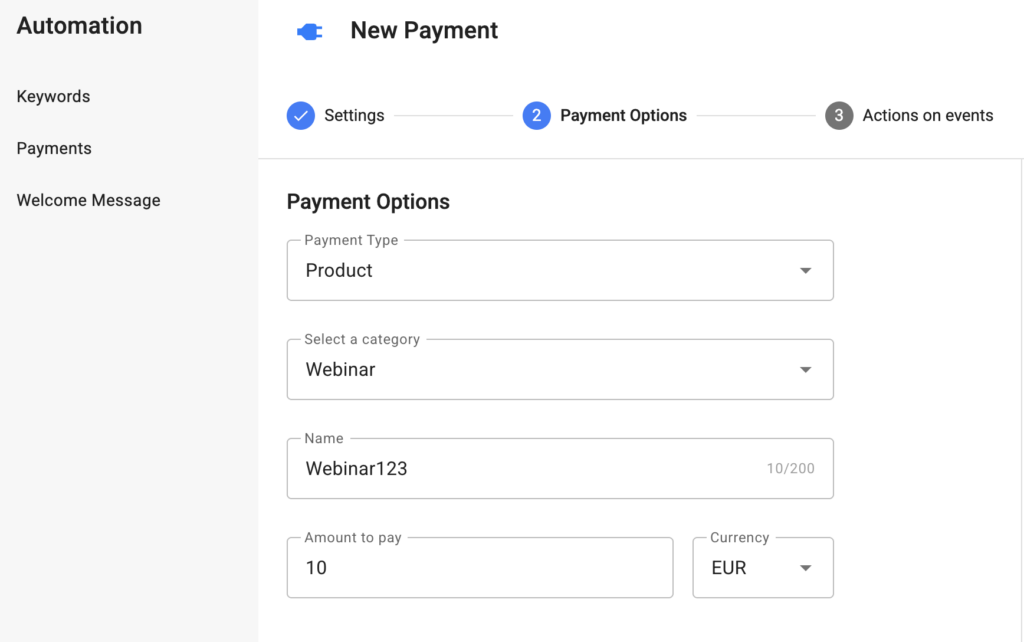
At this step, you create the payment itself. Two types are available:
Product (one-time payment)
Suitable for selling courses, materials, services, or one-time access.
You need to specify:
- Category — what you are selling
(if an exact match is not available, choose the closest one; this is required by the tax authorities) - Name — the name of the payment page
- Amount — how much the client will pay
Available currencies: RUB / KZT / USD / EUR
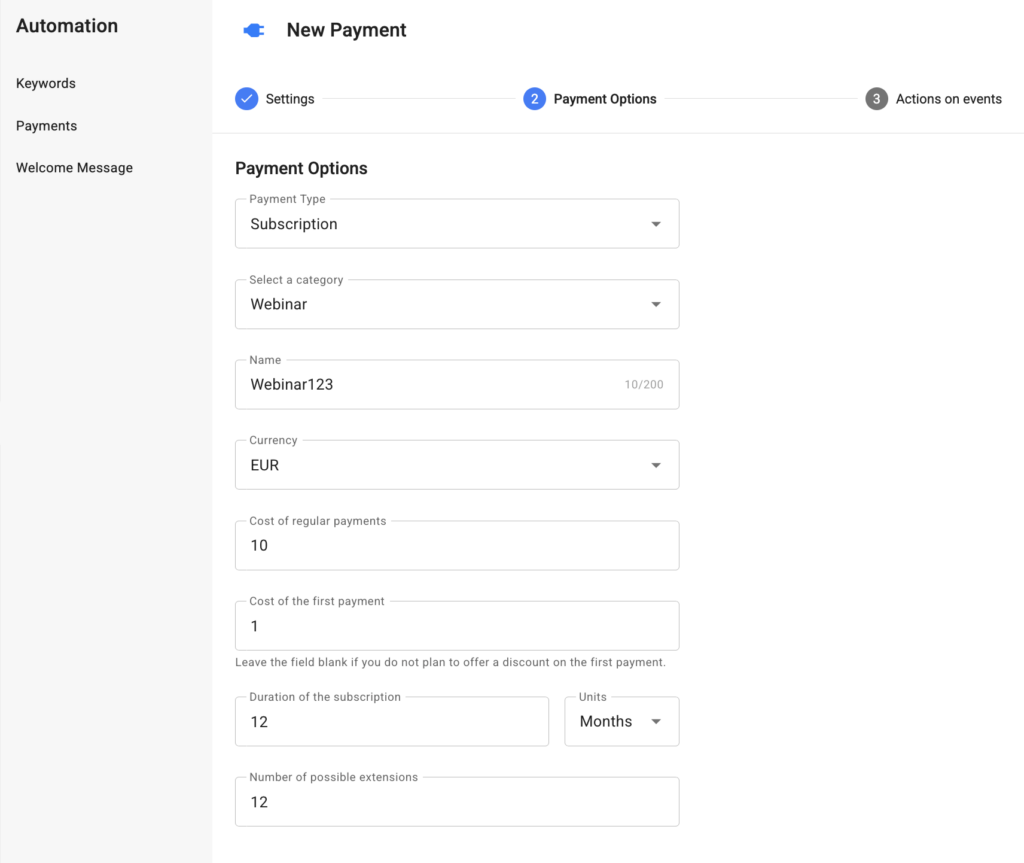
Subscription (recurring payments)
Suitable for clubs, services, or subscription-based access.
The bot logic is similar to subscriptions via Prodamus.
You need to specify:
- Everything required for a product payment.
- Cost of regular payments — how much will be charged each period.
- Cost of the firts payment — optional
(for discounts or a trial period) - Duration of the subscription — how often the payment will be charged (days/weeks/months/years).
- Number of possible extensions:
0— unlimited;- any other number — limited number of charges.
After the first successful payment, the subscription becomes active, and subsequent charges occur automatically.
Step 3. Actions on Events
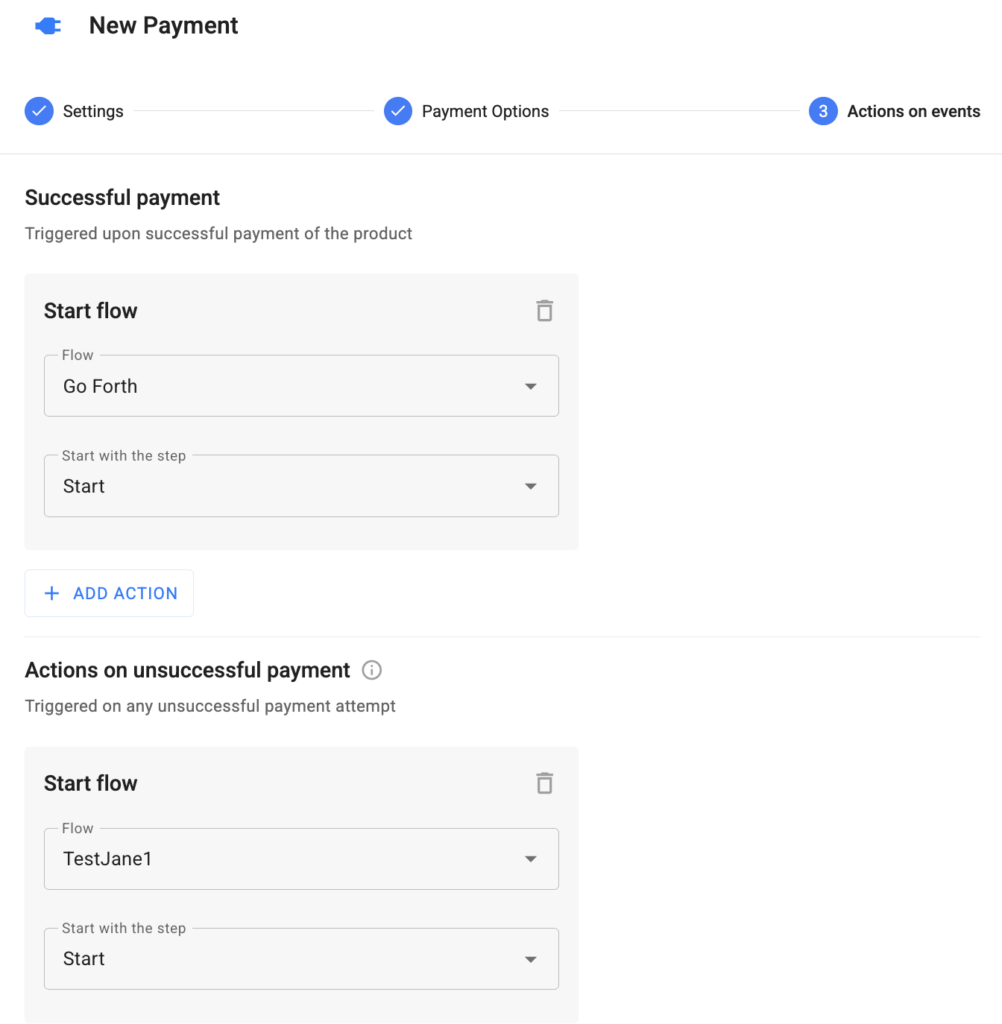
You can trigger automations based on the payment status.
For a product, the following events are available:
- Successful payment — usually used to deliver the paid product.
- Actions on unsuccessful payment — triggered if the user attempted to pay but the payment did not go through
(useful for reminders).
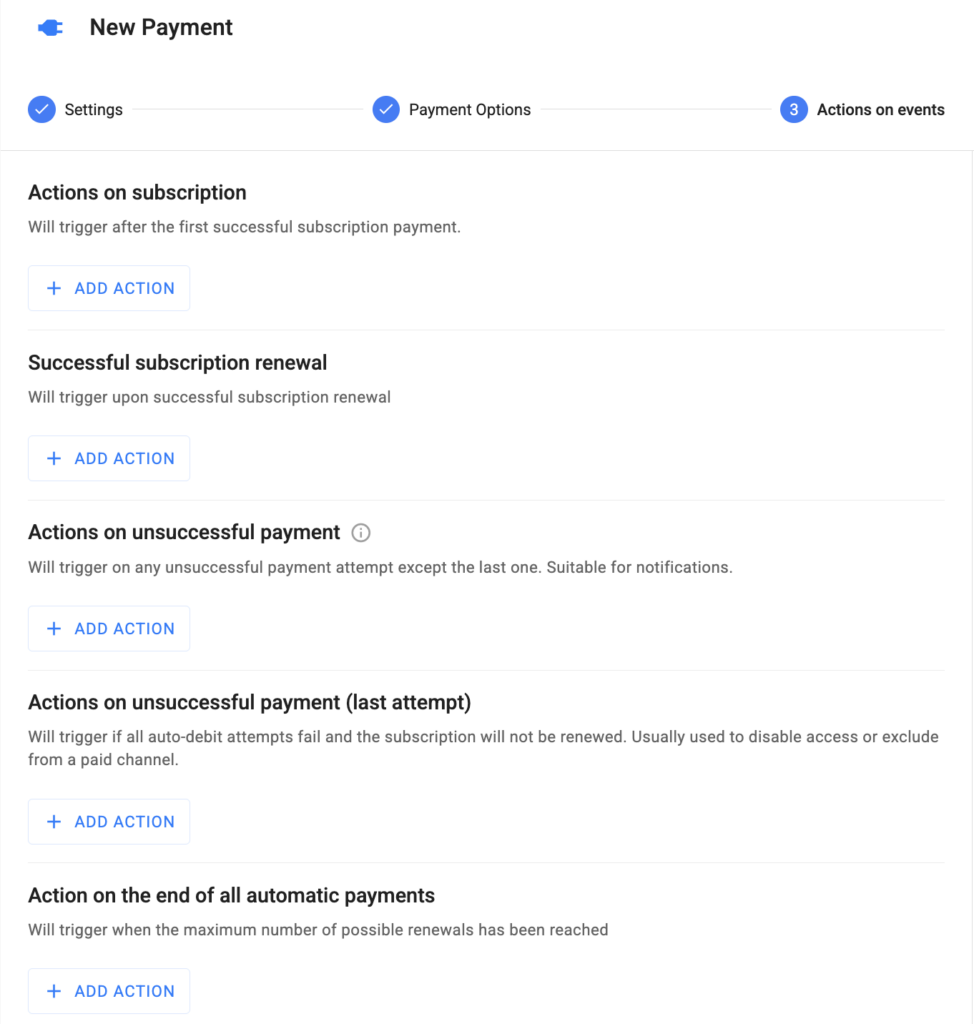
- Actions on subscription — the first successful payment, used to grant access.
- Successful subscription renewal — used for extending access, awarding bonuses, or sending notifications.
- Actions on unsuccessful payment (not the last attempt) — any payment error except the final attempt (e.g., insufficient funds, expired card).
- Actions on unsuccessful payment (last attempt) — all charge attempts have failed; the subscription will not be renewed.
- Action on the end of all automatic payments — triggered when the maximum number of renewals has been reached.
Using in Bots
After saving the payment page, BotHelp creates a macro with the payment link.
Use the macro only:
- in buttons
- in message text
The macro automatically sends subscriber data to GetPlatinum (phone, email, UTM tags, and ID) to correctly link the payment with automations.
The macro is available in Payment Acceptance, in the “Macro” column.

Canceling a Subscription
Available only for Subscription type payments.
How to set it up:
- In the Flow Builder, add an Action block.
- Select Cancel subscription in the payment system
(do not confuse with “Unsubscribe”). - Specify the relevant GetPlatinum subscription.
After the action is executed:
- The subscription is canceled in GetPlatinum.
- Automatic payments stop.
How subscription cancellation works:
- The subscription becomes inactive in GetPlatinum.
- No further charges will occur.
- BotHelp initiates the cancellation, but it is actually executed in GetPlatinum.
Important to Know
If a subscription is canceled manually in GetPlatinum, BotHelp does not receive a notification.
In this case, automations (such as revoking access, removing from a channel, etc.) will not be triggered.
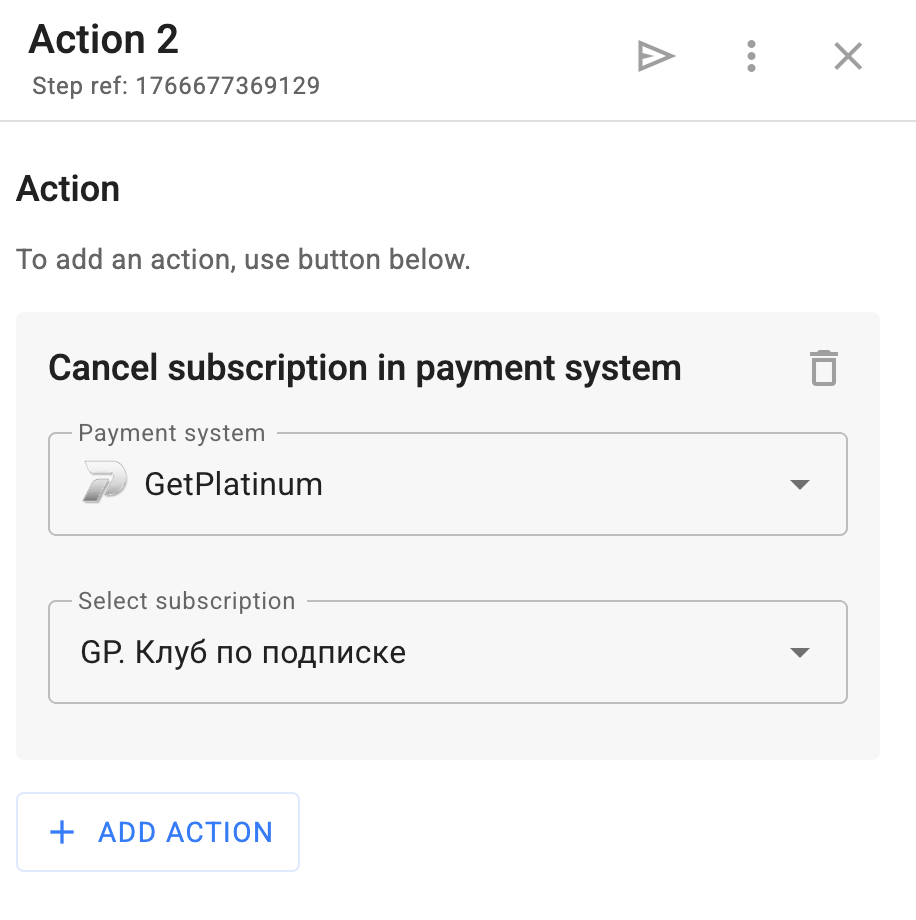
- The “Cancel subscription” action works only for subscriptions created in BotHelp.
- If the subscription is already canceled or was not created through BotHelp, the action will not work.
- Each action block can cancel only one subscription.
Notes on working with GetPlatinum:
- Event-based actions for installment payments may trigger with a delay.
- Event-based actions for payments via Stripe will not work. For international payments, we recommend using JetPay.
If you didn’t find the answer to your question, ask us in the chat inside your workspace, or contact us via Telegram: BotHelpSupportBot, or by email: hello@bothelp.io.
Get 14 days of full access to the BotHelp platform for creating broadcasts, automation funnels, and chatbots.