
This article will help you quickly set up a growth tool — an automatic reaction to comments on VKontakte. You will learn how a bot can respond for you, launch the necessary scenarios, and collect leads without manual moderation. This will save you time and increase audience engagement.
Important
The tool will work only if the subscriber has allowed the community to send messages (a VKontakte limitation). Permission can be obtained in three ways:
- The subscriber followed a VK landing page and granted permission. (More about VK landing pages)
- The subscriber wrote to the community first
- On the main page of the community, the subscriber clicked “More” → “Allow messages”
Where to find the tool
- Go to the Growth Tools section
- In the list, select the Comment on VKontakte
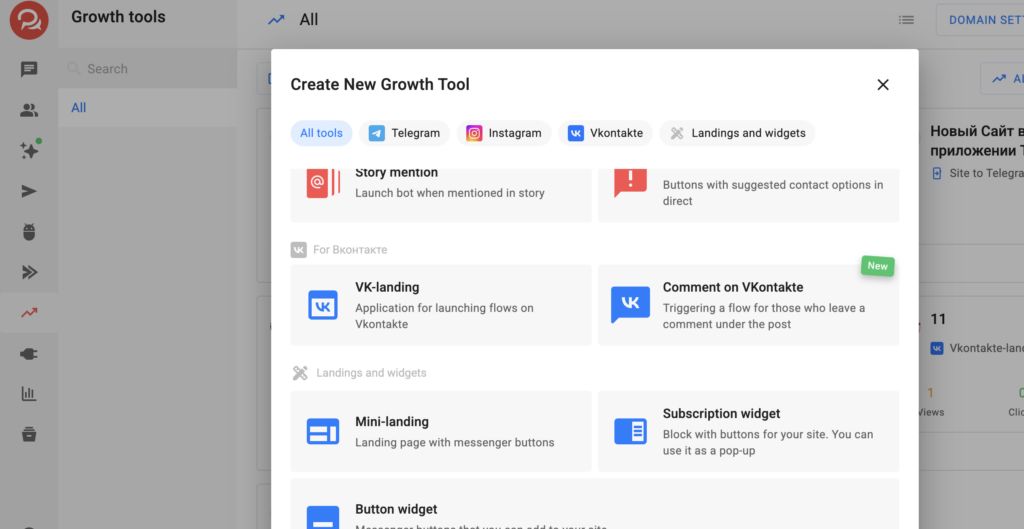
Setting up the growth tool
Step 1: Trigger settings
1. Select the VKontakte channel
- A list of all connected channels will appear
- If the page is not connected — connect the VKontakte channel
• When connecting a channel, the full set of required permissions is now requested automatically
• All BotHelp functionality for VKontakte works immediately after connection, without additional actions in the community settings
• For communities connected earlier, the permissions list has been updated — additional configuration is no longer required
2. Specify under which posts to track comments
- Under all posts
- Under a certain post — insert the link to the post
If the post is deleted, the automation will continue to exist but will not work.
Specify which comments the tool should respond to:
- Any comment — the tool triggers for every comment under the selected posts. You don’t need to specify any keywords.
- Contain — the comment must contain one of the specified keywords.
- Match — the comment text must exactly match the specified keyword.
For Contain and Match, fill in the Keywords field — each keyword can contain up to 120 characters. If necessary, also add Excluded words. A comment containing an excluded word will not trigger the automation, even if it also contains a keyword.
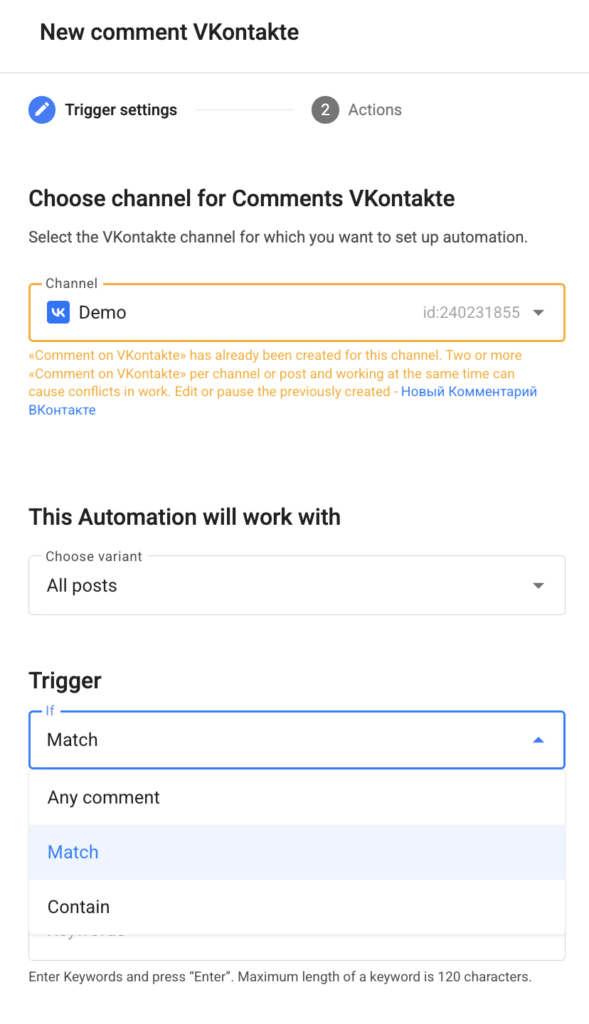
Important: When Any comment is selected, the Keywords and Excluded words fields become unavailable. No filtering is applied, and the automation triggers for every comment.
We recommend: If you want the tool to respond to all comments, select Any comment. This way, you don’t need to choose keywords or come up with exclusion words to cover all possible comments.
4. Ignore repeated launch
Enable the Ignore repeated launch option and specify the ignore period by entering a number and selecting Minutes or Hours.
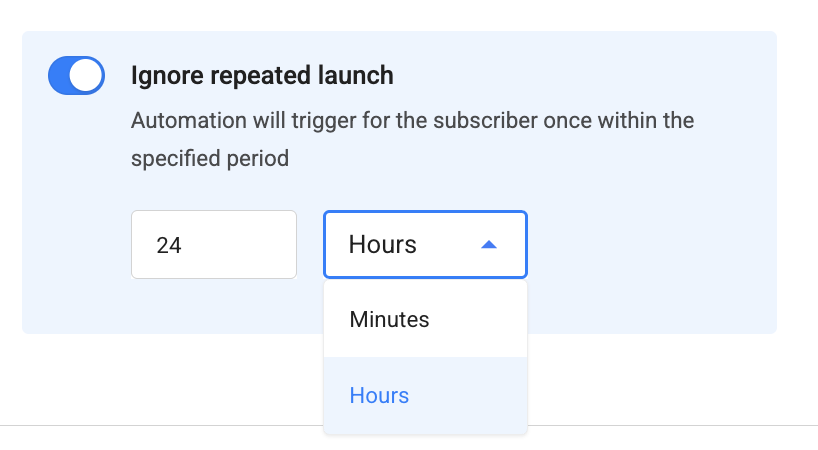
During this period, a new comment from the same subscriber will not launch the flow again. The flow that has already started continues without interruption.
By default, the option is disabled, so every comment that passes the filter launches the flow again.
The minimum value is 1. The maximum is 180 when Minutes is selected and 99,999 when Hours is selected.
Important: If you enter a value above the maximum, the tool cannot be saved and an error will be displayed in the field.
How the ignore period works
- The countdown starts with the first launch and is tracked separately for each subscriber + tool pair.
- Repeated launches during the ignore period do not extend or reset the countdown. The window remains fixed from the first launch.
- When the period expires, the next comment launches the flow again and starts a new ignore period.
- The option applies only to this specific Growth Tool. Another Growth Tool or keyword can trigger independently.
- The option works the same way with both trigger conditions: Contains and Matches.
- If you change the ignore period or disable the option, the changes also apply to ignore periods that are already in progress. The remaining time is recalculated according to the new settings, and disabling the option immediately removes the restriction.
- When you duplicate a tool within the account, the option’s status and ignore period are copied along with it.
- The option takes effect from the moment it is enabled. Launches that occurred before it was enabled are not included in the countdown.
Step 2: Actions
For subscribers who meet the trigger conditions, you can perform one or several actions:
- send a text message (you can add a button) and an image
- launch a bot and other available actions
This way, you start communication automatically right after the comment.
After saving the growth tool, the automation becomes active — subscribers will enter your funnel when the conditions are met.
If you haven’t found the answer to your question, contact us in the chat in your profile or email hello@bothelp.io
Get 14 days of full functionality of BotHelp, a platform for creating broadcasting, autofunnels, and chatbots.
Sign up for BotHelp
Get 14 days of full access for free — enough to build your first bot and test it on real subscribers.
Create account
Была ли статья полезна?