
You can configure the flow or sequences to run based on a keyword. The mechanics are simple: the person enters a keyword or phrase — and the message chain starts.
Adding keywords
- Go to the section “Automation” – “Keywords” and click Create Automation.
- Enter an automation name.
Add words and phrases
Enter the word or phrase that you want to use and press Enter. A gray outline will appear above the word/phrase.
There are two options for triggering: “Contain” and “Match”.
Match. The action will be performed if the message fully matches one of the options in the list of keywords.
Contain. The action will be performed if the message contains the keywords specified in the list.
Case and errors
The case does not affect the operation. Hi or hi — it doesn’t matter.
Exact occurrence
Only the exact occurrence of the word or phrase is recognized. The person has to type exactly what you specified in the automation settings.
If the person types an entire sentence with a single keyword, the automation will work for the condition “Contains”, but it will not work for “Matches”.
For example, if you entered the keyword “price” and set up the condition “Contains”, and the person typed “hi, can you tell me the price” – automation will not work. For it to work correctly, add the “the price” option to the list.
Ignore repeated launch
The Ignore repeated launch option prevents the same subscriber from restarting the flow while the specified time interval is active. It is useful when a subscriber enters a keyword while already in a conversation — for example, when replying to a bot’s question or interacting with an AI-agent — so the keyword does not restart the flow from the beginning.
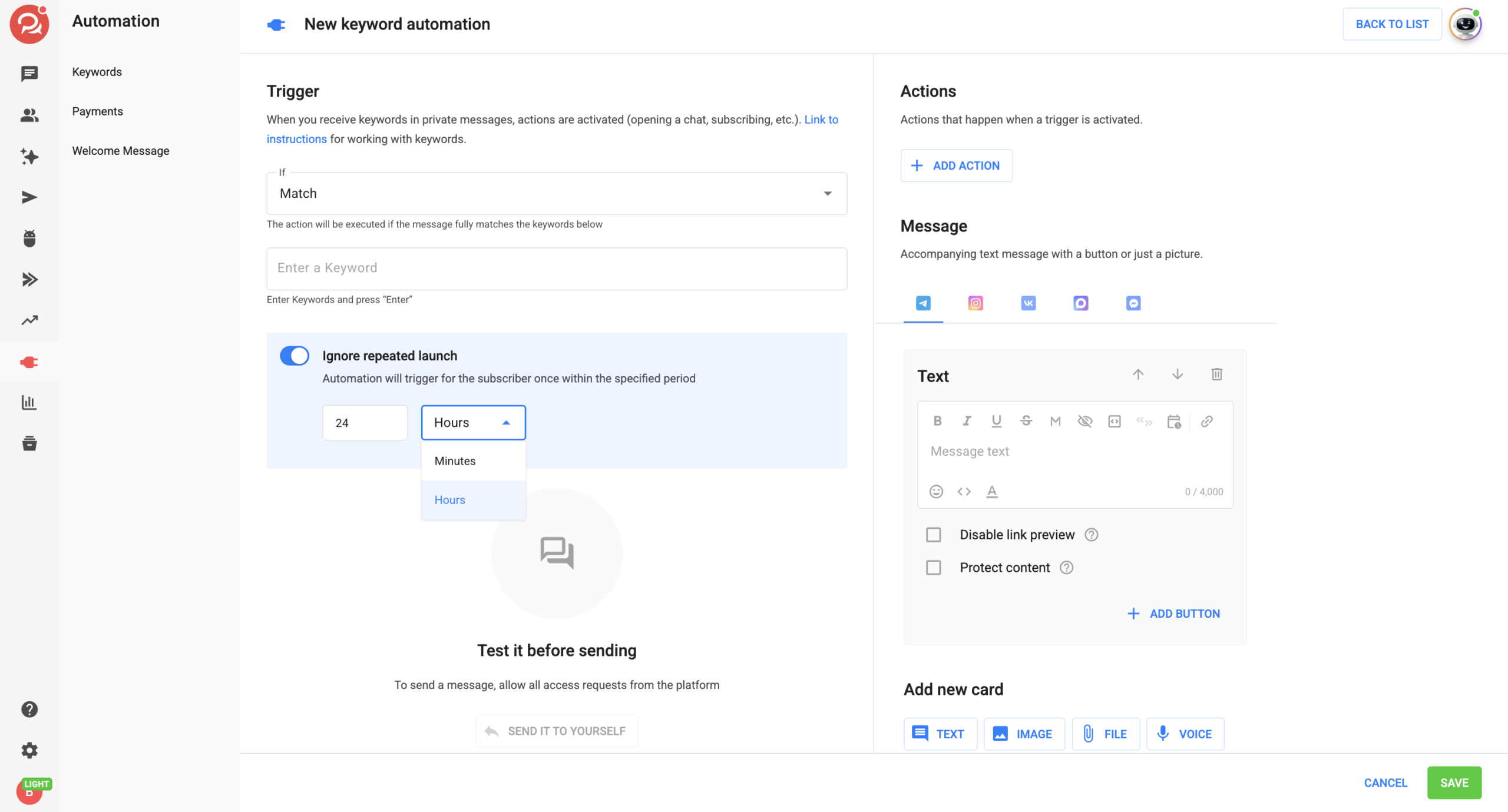
By default, the option is disabled, so every keyword trigger launches the flow again.
- In the automation settings, enable Ignore repeated launch.
- Specify the ignore period by entering a number and selecting Minutes or Hours.
- Save the automation.
The minimum value is 1. The maximum is 180 when Minutes is selected and 99,999 when Hours is selected.
Important: If you enter a value above the maximum, the automation cannot be saved and an error will be displayed in the field.
How the ignore period works:
— The countdown starts with the first launch and is tracked separately for each subscriber + keyword pair.
— Repeated launches during the ignore period do not extend or reset the countdown. The window remains fixed from the first launch.
— When the period expires, the next trigger launches the flow again and starts a new ignore period.
— The option applies only to the specific keyword. Another keyword or Growth Tool can trigger independently.
— The option works the same way with both trigger conditions: Contain and Match.
— If you change the ignore period or disable the option, the changes also apply to ignore periods that are already in progress. The remaining time is recalculated according to the new settings, and disabling the option immediately removes the restriction.
— When you duplicate the automation within the account, the option’s status and ignore period are copied along with it.
The option takes effect from the moment it is enabled. Triggers that occurred before it was enabled are not included in the countdown.
Actions
You have to set up actions that will be triggered after the person enters the keyword or phrase.
Action options:
- Start or stop a flow.
- Add or remove from a sequence.
- Add or remove a tag.
- Set or clear a field.
- Increase or decrease a numeric field.
- Subscribe or unsubscribe and other.
Message
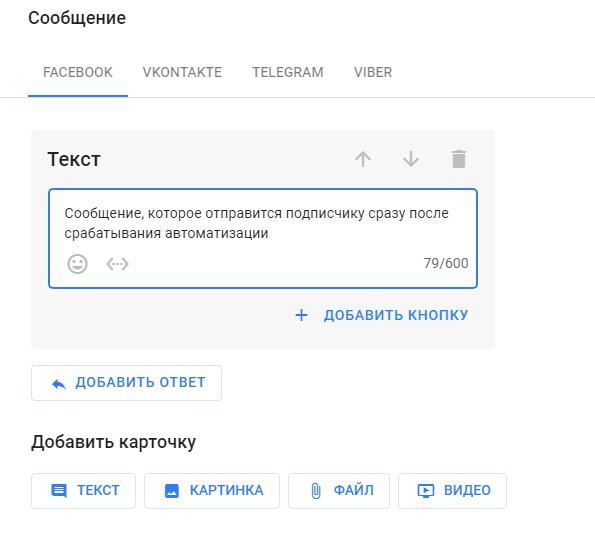
If you don’t need a long message chain that starts after automation is triggered, you can write a single message directly in its settings.
Activation
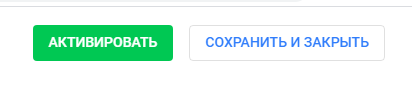
After setting it up, don’t forget to activate and save automation.
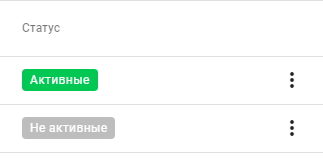
If you don’t need this automation now, you can temporarily stop it. In the list of automations, active ones are highlighted in green, and inactive ones are highlighted in gray.
Usage options
Enter the keywords “stop” or “unsubscribe” and use these words to remove the person from sequences and stop flows. But you’ll have to specify all the sequences that you want to install.
- Getting a bonus
In a video or post, specify a unique keyword that the person can enter to get a bonus. Create a chain with the bonus and run it in “Actions”.
- Home assignment
In the first task, inform your people: to get the second lesson, the student has to enter the keyword. And if they don’t look through the first task, they won’t get the second one either, because they won’t know the keyword.
- Quiz and scores
By keyword, you can decrease or increase the values in the numeric fields. You can set up points accrual for entering this word.
There are other possible ways to use triggers, depending on your funnel and message chains.
FAQ
Where will automation work?
Automation is not linked to the channel. Therefore, it will work where it is activated. For example, the flow will not start if the keyword was entered in one channel, but the flow is configured for another.
You have to create unique keywords for each community or flow.
_________________________________
If you haven’t found the answer to your question, contact us in the chat in your profile or email hello@bothelp.io 😃
Get 14 days of full functionality of BotHelp, a platform for creating broadcasting, autofunnels, and chatbots.
Sign up for BotHelp
Get 14 days of full access for free — enough to build your first bot and test it on real subscribers.
Create account
Была ли статья полезна?