
An external trigger launches a multi-step bot in response to an event that happened outside the conversation. The bot starts immediately, without a keyword and without a click from the subscriber.
External triggers only work in bots on Telegram, VKontakte and MAX channels.
What it is and why you need it
An external trigger adds one more way to launch a bot: the bot starts on an event recorded by an external system or by the BotHelp platform itself. For example, the GetCourse integration reports that an order status has changed.
This lets you move a subscriber through the funnel without delay: as soon as the required condition is met, the bot sends the next step of the chain.
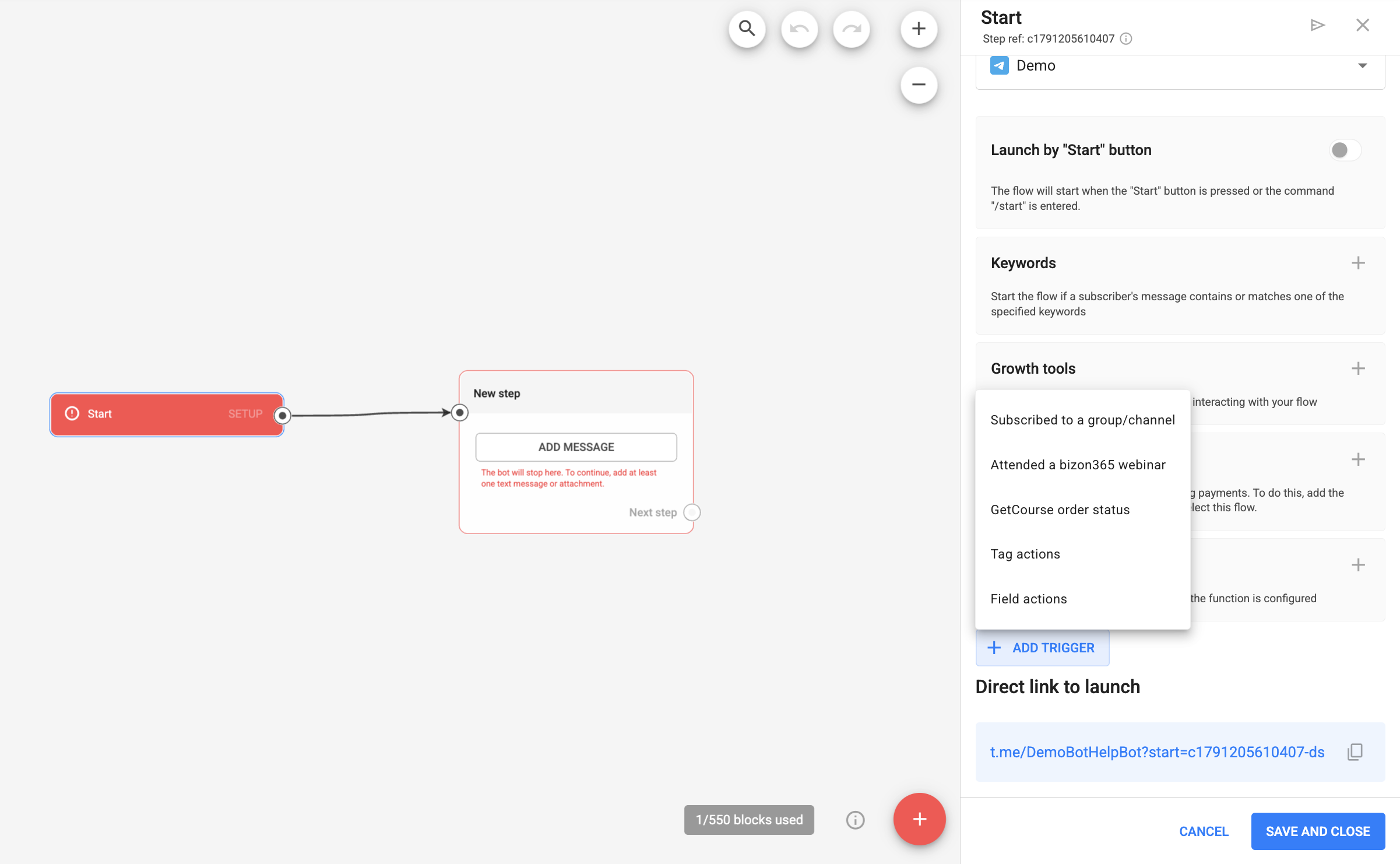
In the Start step, you can set up several external trigger sources, up to 15 per bot. The following sources are available:
- subscription to a Telegram group/channel;
- attending a webinar on the Bizon365 platform;
- order status in GetCourse;
- tag actions: tag added or tag removed;
- field actions: name, email, phone, UTM parameters.
How to add a trigger source
- Open the bot and go to the Start step.
- Click Add trigger.
- Select the source type from the list.
- Fill in the required source fields. They depend on the type (see the section below).
- Save the source.
When you save, the system checks that the same source (with the same value) isn’t already used in the Start step of another bot on this channel.
Trigger sources
Subscribed to a group/channel
The source fires when a subscriber joins a specific Telegram group or channel. It only works for Telegram, regardless of which channel the bot itself runs in. This means a subscription to a Telegram channel can also launch a multichannel bot.
Required field: “@groupname or ID”: the name of a public group/channel in the @groupname format, or the ID of a private group/channel.
Required condition: the bot must be added as an administrator to the specified group or channel. Otherwise, Telegram doesn’t send the subscription event. When you set up the source, the interface shows an alert reminding you of this, with a link to the guide on working with Telegram groups and channels.
Example: you run a private Telegram channel with paid content and want the bot to send every new channel subscriber a welcome chain with channel navigation. Add the “Subscription to a Telegram group/channel” source and enter the channel ID. The bot will start in the conversation with the subscriber right after they join.
How it fires:
- if a subscriber leaves the channel and joins again later, the trigger fires again, on every new subscription event, not only the first one;
- if a subscriber joins a different Telegram channel in your account, not the one specified in the source, the trigger doesn’t fire.
When the trigger fires, a system message appears in the subscriber’s conversation: “Launch trigger fired: “Subscribed to group/channel: {@groupname or ID}””.
Attended a Bizon365 webinar
The source fires when a subscriber actually attended a webinar broadcast on the Bizon365 platform, not just registered for it.
Required field: “Room ID”: the identifier of the webinar room in Bizon365.
Optional parameter: the “Count time spent” checkbox. When enabled, an additional required field appears: “Time (min)”, the minimum time a subscriber must spend on the broadcast for the event to count as attendance.
For the source to work, you first need to set up the Bizon365 integration and event transfer as described in the integration guide. When you set up the source, the interface shows an alert reminding you of this.
Example: you’re running a webinar and want the bot to launch after the broadcast only for those who stayed at least 20 minutes, sending them the recording and a special offer. Add the “Bizon365 webinar attendance” source, enter the room ID, enable “Count time spent”, and set it to 20 minutes.
How it fires: if a subscriber registered for the webinar but didn’t join the broadcast, the trigger doesn’t fire. Only actual attendance counts.
GetCourse order status
The source fires when an order in GetCourse changes to a specific status.
Required field: “Order status”, selected from the list: new, completed, cancelled, false, in progress, awaiting payment, partially paid, awaiting refund, not confirmed, postponed.
You also need to fill in one of the two:
- “Offer ID”: a number (can be passed via a Number type macro);
- “Tag”: one or more tags, selected from the list of GetCourse offer tags.
Example: you want the bot to send students access to course materials right after they pay. Add the “Order status in GetCourse” source, select the “Paid” status (or “Completed”, depending on which status records payment in your GetCourse funnel), and enter the offer ID or product tag.
How it fires:
- the system checks the new status value at the moment of the change, not whether the order was ever in the required status. For example, if the trigger is set to “Paid” and the order goes “New” → “Paid” → “Refund”, the trigger won’t fire again for “Paid” when the order changes to “Refund”;
- if GetCourse sends the order status directly, skipping intermediate values, the trigger still fires as long as the final status matches the condition.
Tag actions
The source fires on the action itself — a tag being added to or removed from a subscriber — not on whether the subscriber currently has the tag. These are two independent source options:
- tag added: responds to the event of a tag being added;
- tag removed: responds to the event of a tag being removed.
Required field: “Tag”, selected from the list of tags in your account. There are no additional parameters.
Example: in another bot or manually, you add the “Warmed up” tag to subscribers after a series of warm-up messages. In a new bot, add the “Tag actions: tag added” source and select the “Warmed up” tag. As soon as the tag is added, this bot launches immediately and offers the subscriber a purchase.
How it fires:
- if a tag is removed from a subscriber and then added back right away, the “tag added” trigger fires again, on every new add event, not only the first time the tag appears;
- if someone tries to remove a tag the subscriber never had, no removal event is created, and the “tag removed” trigger doesn’t fire.
When the trigger fires, a system message appears in the subscriber’s conversation: “Launch trigger fired: “Tag actions: {tag name}””.
Field actions
The source fires when the value of one of the existing subscriber fields changes: name, email, phone, or individual UTM fields.
Setup uses the same configurator as the Condition step: field + operator + value.
The available operators depend on the field type:
| Field type | Operators | Value |
|---|---|---|
| Text (name, email, phone, UTM) | matches / does not match / contains / does not contain / unknown (empty) / has any value (filled) | constant, another field, or account variable |
| Number | equals / does not equal / greater than / less than / greater than or equal to / less than or equal to | number constant, number field, or variable |
| Date | equals / greater than or equal to / less than or equal to | constant from the calendar, current date, or Date type field or variable |
| Date and time | equals / greater than or equal to / less than or equal to | constant from the calendar with time (HH:MM), current date and time, or Date and time type field or variable |
The trigger fires if the field value changed (was X, became Y) and the new value Y meets the specified operator. Only the new value at the moment of the change is checked; it doesn’t matter whether the old value met the condition. Filling in an empty field for the first time doesn’t count as a change and doesn’t fire the trigger, even if the entered value already meets the condition.
Examples for the Phone / Name / Email fields:
- operator “contains”, value “137”: was 89261234567, became 89261371234 — fires; became 89261239999 — doesn’t fire;
- operator “does not contain”, value “@test.ru” (Email field): was login@test.ru, became login@mail.ru — fires; became login2@test.ru — doesn’t fire;
- operator “matches”, value “John” (Name field): was “Johnny”, became “John” — fires; became “John Smith” — doesn’t fire;
- operator “does not match”, value “John” (Name field): was “John”, became “Peter” — fires; became “John” — doesn’t fire;
- operator “unknown” (empty): was 89261371234, field cleared — fires;
- operator “has any value” (filled): was 89261234567, became 89261239999 — fires; but filling in an empty field for the first time with this operator doesn’t count as a change and doesn’t fire.
Example: you want to launch a separate chain for subscribers who came from a specific ad campaign. Add the “Field actions” source, select the utm_campaign field, the “matches” operator, and enter the campaign code as the value.
When the trigger fires, a system message appears in the subscriber’s conversation: “Launch trigger fired: “Field actions: {field name}””.
Limits and conflict protection
Source limit per bot
You can set up no more than 15 trigger sources per bot, regardless of type. This is a separate limit, unrelated to the limit of 15 conditions in the Condition step. The limits don’t add up or affect each other.
Protection against duplicate triggers in different bots
The same source with the same value (for example, “tag added = Warmed up”) can’t be set up in the Start step of two bots on the same channel. If you try to save such a source, a warning appears and saving is blocked, right during setup, before the source starts working.
Protection against loops between bots
If a trigger in one bot can fire from an action inside another bot, the system checks whether a launch loop is formed.
Example: bot A adds the “Warmed up” tag to a subscriber at one of its steps. Bot B has the source “tag added = Warmed up”, so bot B launches after bot A. If you then try to set up a source in bot A for a tag that bot B adds, you get a loop: A launches B, and B launches A again. Connecting such a source is not allowed; the system shows a warning when you try to save.
A special case is a self-loop. If a trigger in the Start step of bot A can launch bot A itself directly, without other bots in between, the connection isn’t blocked, but the system shows a warning so you can consciously assess the consequences of this setup.
Additional notes
- if a bot is stopped (deactivated), its trigger sources don’t fire; the event simply doesn’t launch the bot;
- Start step settings, including trigger sources, aren’t copied when you copy a bot. You need to set them up again after copying.
“Return to interrupted step” branch
After an external trigger fires in the Start step, you can optionally enable the “Return to interrupted step” branch. It isn’t required and is enabled only if your funnel needs it.
On the bot canvas, this branch appears as a final node: a card with no outgoing transitions. You can set a transition to it not only from the first message, but from any step of the bot, and from any button that supports a transition to another bot (inline button, URL button, Telegram menu button, VKontakte keyboard, and similar elements in other channels).
If an interrupted step is recorded for the subscriber when the external trigger fires, the “Return to interrupted step” transition sends them to that step, and the bot continues along the chain’s normal connections.
For example, if an external trigger launches bot B while the subscriber is already in bot A, bot A stops. Two multi-step bots don’t run in parallel for the same subscriber. The step the subscriber was on in bot A when it stopped is recorded as their “interrupted step” in bot A. You can return the subscriber to it with the “Return to interrupted step” branch, if it’s set up in bot A and bot A’s own launch trigger fires later.
If there’s no interrupted step (for example, it’s the subscriber’s first entry through this trigger, or the step was deleted from the bot during rebuilding), the transition does nothing. The bot ends for this subscriber at this node, like at a regular final node with no outgoing transitions, without additional notifications.
Several triggers firing at once
If several configured sources match for a subscriber within the same event (for example, one update in which both a tag and a field changed), the bot launches once. The launch system message shows the source that is higher in the list in the Start step settings.
If you didn’t find the answer to your question, ask us in the chat inside your account or email us at hello@bothelp.io
Get 14 days of full access to the BotHelp platform for creating broadcasts, autofunnels, and chatbots.
Sign up for BotHelp
Get 14 days of full access for free — enough to build your first bot and test it on real subscribers.
Create account
Была ли статья полезна?