
A mini-landing page is a short landing page with messenger buttons.
When you click the subscription button, the messenger application installed on the device opens, as well as a conversation with the selected channel. At the start of communication, the selected flow is launched.
Creation
To create a new mini-landing page, go to the “Growth Tools” section and click the New Tool button. Choose to create a VKontakte landing page or a mini-landing page.
Setting up
1. Name
Give a name to the landing page. It will be visible only to you, choose the one that will help you distinguish between your landing pages.
2. Image
Add an image from your computer. This is optional, but the image will make the landing page more personalized and memorable.
The recommended image size is 1200x300px, the weight is up to 100kb, but others will do.
3. Video
Add a link to the video. It should be posted on YouTube.
You can only add a video if you did not add an image.
4. Title
Add an attractive title. The title on the mini-landing page is displayed in large bold font. It has a limit of 1000 characters, but we do not recommend using more than 3-8 words.
5. Description
Write a short description of your offer.
The text in the description is centered. We recommend choosing the size of the description and other elements in such a way that everything fits on one mobile screen. This is about 5-10 lines of text.
6. Buttons
You can add 5 buttons, one for each connected channel. If the channels are not connected, you will not be able to select the button.
For each button, you can set up:
- The text of the button.
- The flow/sequence that will be launched by clicking the button.
- The step of the flow from which it will be launched.
For VKontakte, you have to select a VK landing page, which will open by clicking the button on the mini-landing page.
(!) For Instagram*, there is currently no way to add a button to a mini-landing page.
Another button setting is Ignore repeated launch. Enable it and specify the ignore period by entering a number and selecting Minutes or Hours.
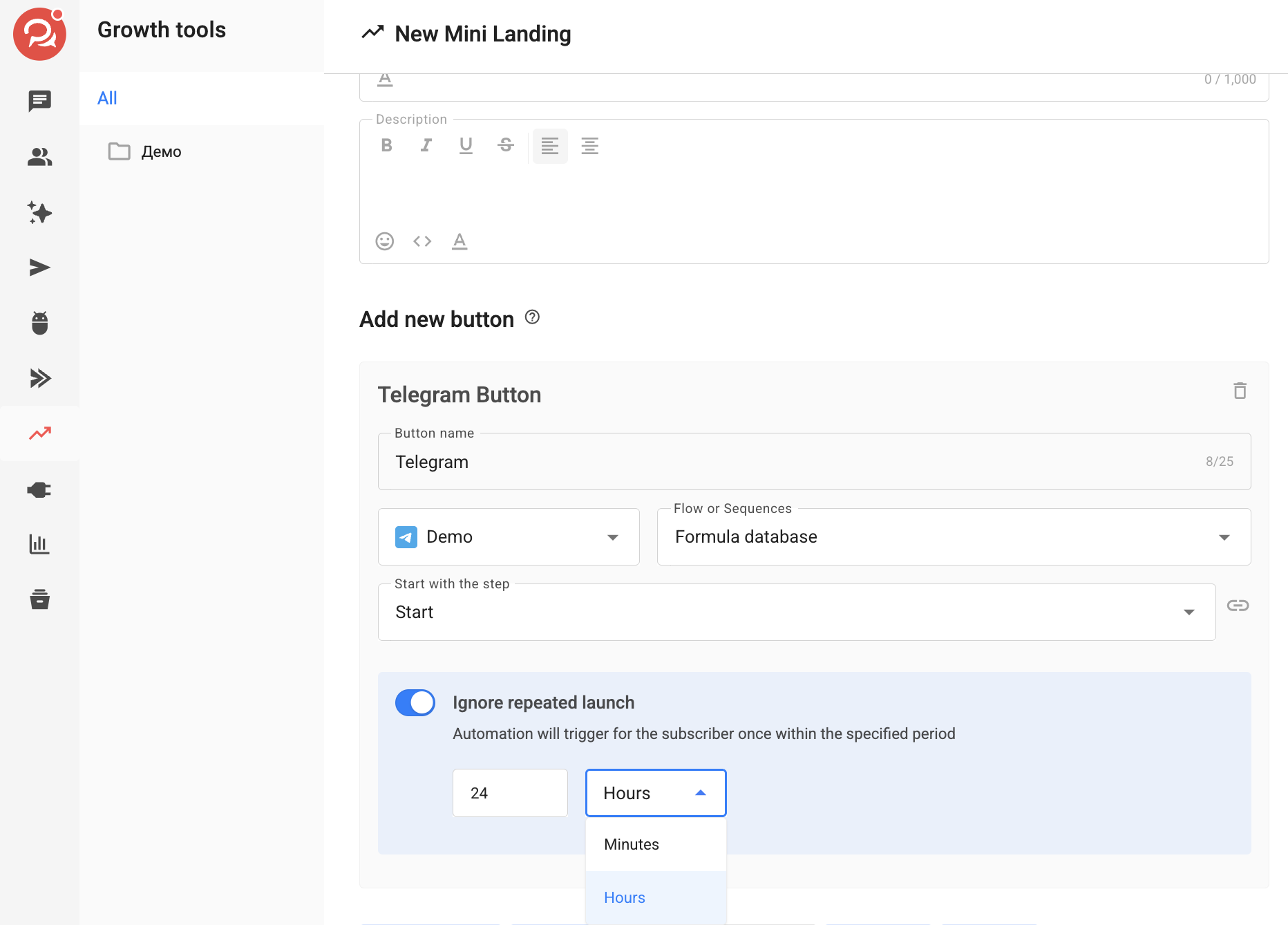
During this period, a repeated click by the same subscriber on this button will not launch the flow again. The flow that has already started continues without interruption.
By default, the option is disabled, so every button click launches the flow again.
The minimum value is 1. The maximum is 180 when Minutes is selected and 99,999 when Hours is selected.
Important: If you enter a value above the maximum, the mini landing page cannot be saved and an error will be displayed in the field.
How the ignore period works
- The countdown starts with the first launch and is tracked separately for each subscriber + button pair.
- Repeated launches during the ignore period do not extend or reset the countdown. The window remains fixed from the first launch.
- When the period expires, the next button click launches the flow again and starts a new ignore period.
- The option applies only to this specific button. Other landing page buttons, Growth Tools, and keywords work independently.
- If you change the ignore period or disable the option, the changes also apply to ignore periods that are already in progress. The remaining time is recalculated according to the new settings, and disabling the option immediately removes the restriction.
- When you duplicate a mini landing page within the account, the option’s status and ignore period are copied along with the button.
Important: This setting is not available for the VK button — a tooltip is displayed instead. To configure Ignore repeated launch for VK, use the setting in the VK landing page that opens when the button is clicked.
The option takes effect from the moment it is enabled. Launches that occurred before it was enabled are not included in the countdown.
Advanced Settings
Request email and phone number
You can request a phone number before the user subscribes. If a person does not enter this information, they will not be able to subscribe to the broadcasting.

The entered data is saved in the corresponding field in the person’s profile. You can export it or send it via webhook to CRM.
The phone number has to be entered using the “+” sign in the international format. The validator will not accept spaces, brackets and other characters in the number. The allowed number of digits is from 7 to 15.
Tag
Assign a tag to all people who subscribe through this landing page. It is by tags that people can later be segmented. Learn more about using tags
UTM tags
Track the effectiveness of ads and funnels by adding a UTM tag to the mini-landing link. Instructions for creating a UTM tag
Analytics
Connect the mini-landing to Yandex and Google analytics systems. To do this, simply copy the tag number from the analytics system and paste it when setting up the landing page. Instructions for setting up goals →
Facebook* Pixel
Set up ads with conversion tracking or create a separate audience for advertising using the Facebook pixel. Instructions for setting up a pixel →
VK Pixel
The VKontakte pixel allows you to track all visitors who have visited your landing page and clicked on the button. Instructions for setting up a VK pixel
(!) You can place one pixel on multiple landing pages. But you have to set up separate events for each landing page, otherwise statistics from all landing pages will be sent to one event.
Own domain
You can add your own domain, which will display the mini-landing page created on our platform. Instructions for setting up your domain
HTML code
You can change your mini-landing page. Use the “Insert HTML Code” function. See the full guide for details.
To learn how to remove the “Made on BotHelp” inscription, see the video tutorial:
(!) There is currently no field for editing the page footer or changing the privacy policy link.
Use your privacy policy
It is possible to add the title and link of your document, which people automatically agree to if they click the button on the mini-landing page.
By default, “BotHelp Privacy Policy” is added to the mini-landing page.
QR-code
It is possible to get a QR-code to the landing page — this button is located in the settings, right next to the link.
* Owned by Meta, an organization recognized as extremist and banned in Russia.
If you haven’t found the answer to your question, contact us in the chat in your profile or email hello@bothelp.io
Get 14 days of full functionality of BotHelp, a platform for creating broadcasting, autofunnels, and chatbots.
Sign up for BotHelp
Get 14 days of full access for free — enough to build your first bot and test it on real subscribers.
Create account
Была ли статья полезна?