
A Time limited link is a macro that turns a regular link into one with a limited validity period or a single-click limit. Once the link has expired or has already been used, the subscriber won’t reach the original page. They will see a page with an explanation or go straight to your fallback address.
The macro is useful when you need to limit a promotion or discount by time, give one-click access to materials, or show a different offer to subscribers who arrive too late.
Macro format
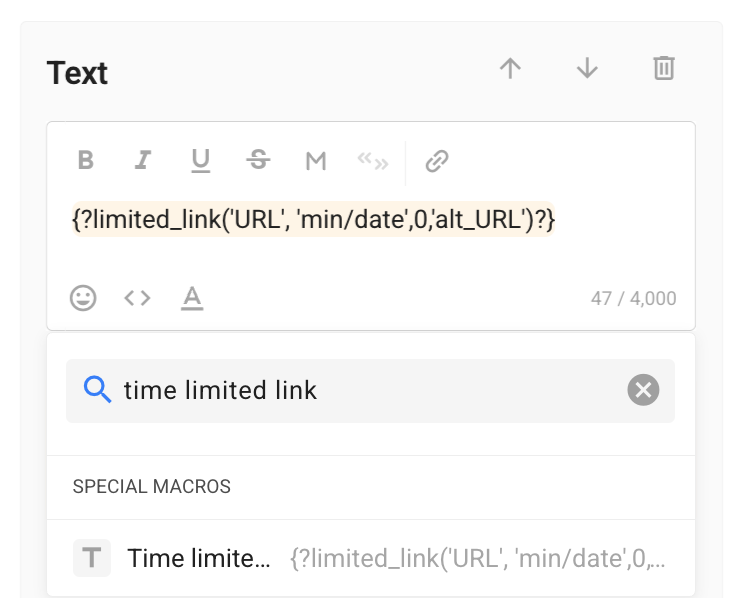
The macro looks like this: {?limited_link(URL, min/date, 0, alt_URL)?}
The first three parameters are required, and the fourth is optional. Separate the parameters with commas. You can enter them without quotes or in single quotes.
URL
The address of the page the subscriber will reach while the link is active, for example https://site.com.
- You can use subscriber fields and global variables in the address.
- Instead of an address, you can insert the payment macro
{%payment_x%}. This limits the validity period of a payment link. - If the address contains a comma, put the link in single quotes:
'https://site.com/?id=1,2'.
Min/date
The moment when the link stops working. You can set it in two ways:
- A date and time in the format DD.MM.YYYY HH:MM, for example 01.01.2030 13:00. The time is based on your account’s time zone.
- A number of minutes, for example 60. The link will stay active for 60 minutes.
Instead of an exact date, you can use a relative date macro, for example {%today+1 (d.m.Y)%}. The expiry is then calculated for each subscriber from the day the message is sent. [to confirm: what time of day the link stays active until if only a date is specified]
The time zone is locked in when the message is sent. If you change the time zone in your account settings later, the expiry of links that have already been sent won’t change.
Important: minutes are counted from the moment the message is queued for sending, not from the moment the subscriber receives it. In a broadcast to a large database, messages go out gradually, so the link may expire for the last recipients before the message reaches them. For such broadcasts, set the expiry as a date and time or allow extra minutes. For more on sending speed, see the article “Speed limits and working with a large database”.
Limit (0)
How many times the link can be clicked:
- 0 — no limit until the link expires;
- 1 — once only. The link stops working after the first click.
Alt_URL
An optional parameter: the address the subscriber will be taken to instead of the standard page when the link is no longer active. For details, see the section “Your own page instead of the standard one”.
Examples
{?limited_link(https://site.com,01.01.2030 13:00,0)?}— the link is active until 13:00 on January 1, 2030, in your account’s time zone, and can be clicked any number of times.{?limited_link(https://site.com,60,1)?}— the link is active for 60 minutes and can be clicked once.{?limited_link({%payment_1%},1440,0)?}— the payment link is active for 24 hours (1,440 minutes).{?limited_link('https://site.com', '{%today+1 (d.m.Y)%}',0)?}— the expiry is tomorrow’s date.{?limited_link(https://site.com/sale,01.01.2030 13:00,0,https://site.com/catalog)?}— after the link expires, the subscriber is taken to the catalog page.
How to add the link to a message
In the message text
- Open the message you want to add the link to: the “Message” step in a flow, a broadcast, an automated broadcast, or another section from the list below.
- In the text field, click the macro insertion button
<...>. - Select “Special macros” → “Time limited link”.
- Replace the parameters in the macro with your own: link, expiry, and limit. If needed, add the fourth parameter, a fallback link.
To limit a payment link, insert the payment macro from the same macro list in place of the first parameter. You’ll get a macro like {?limited_link({%payment_1%},10,0)?}. [to confirm in the interface: how inserting a payment macro inside a macro looks in the editor]
In a URL button
- Add a button of the “URL” type to the message.
- In the address field, paste the entire macro, for example
{?limited_link(https://site.com,01.01.2030 13:00,0)?}. This field has no macro list, so type the macro manually or copy it. - Make sure the “Track clicks” toggle is on.
Important: if you turn off “Track clicks” in the button settings, the expiry and click limits won’t work.
The subscriber will receive a short BotHelp link instead of the original address.
Where the macro works
You can send a Time limited link to a subscriber in any messenger:
- Flows — the “Message” step: text, questions, captions for photos, videos, files, audio, video notes, voice messages, and galleries, as well as URL buttons.
- Broadcasts and automated broadcasts — text, media captions, and URL buttons.
- Automation — keyword replies, the message to the subscriber in payment automation, and the greeting.
- Growth tools — “Instagram* comment reaction”, “Reaction to a VKontakte comment”, and “Facebook* comment reaction”.
- Quick replies.
The macro isn’t supported, and doesn’t appear in the macro list, in the order description in payment automation, the greeting set up when connecting a channel, the “Reply in comments” growth tool, mini-landing pages and VK landing pages, the “Formula” step, field actions, the AI-Agent Instructions, WhatsApp template variables, or messages that an agent writes manually in the “Conversations” section.
What the subscriber sees when the link is no longer active
The link stops working when:
- the expiry set in the second parameter is reached;
- the limit is 1 and the link has already been clicked.
After that, clicking the link doesn’t lead to the original page. The subscriber will see the standard BotHelp page or, if you specified the fourth parameter, will go straight to your fallback link.
Standard page
The page text depends on the reason:
- “This link has expired” — “This link was available for a limited time. If you have any questions, write in the chat where you received the link.”
- “This link has already been used” — “This link can only be opened once. If you have any questions, write in the chat where you received the link.”
If the link has both expired and reached its limit, the subscriber will see the “This link has expired” page.
The page opens in Russian or English, depending on the subscriber’s browser language. If the browser is set to another language, the page opens in your account’s language.
Your own page instead of the standard one
To avoid losing subscribers who arrive too late, specify your own link in the fourth parameter, for example a page with a different offer. When the subscriber clicks an inactive link, they go straight to it, and the standard page doesn’t open.
{?limited_link(https://site.com/sale,01.01.2030 13:00,0,https://site.com/catalog)?}
- There is one fallback link for both reasons: when the link has expired and when it has already been used.
- In the fallback link, you can use the same things as in the first parameter: subscriber fields, global variables, the payment macro, and quotes for addresses with commas. You can’t nest another Time limited link inside it.
- The fallback link must be a full address starting with http:// or https://, taking into account the substituted field and variable values.
- If the fallback link is invalid, the message will still be sent, and the link from the first parameter will work with the limits you set. Once it stops working, the subscriber will see the standard page.
How it works
“Link click in a step” condition
A click on an active link counts for the condition, which takes the “Yes” branch. A click on a link that is no longer active doesn’t count: if the subscriber only clicked an inactive link, the condition takes the “No” branch. This applies both when the standard page is shown and when the subscriber is redirected to your fallback link. For more about the condition, see the article Step “Condition”.
Statistics
Clicks on an inactive link aren’t included in click statistics.
Invalid parameters
If the first three parameters are filled in incorrectly, the link won’t be sent, and the macro will be removed from the message. Before launching a flow or broadcast, test the message on yourself.
Use cases
- Promotion until a certain date. Send a discounted payment link in a broadcast that stays active until the promotion ends:
{?limited_link({%payment_1%},31.12.2026 23:59,0)?}. After that, the subscriber will see that the link has expired. - Personal deadline in an automated funnel. In a flow or automated broadcast, send a payment link that stays active for 48 hours:
{?limited_link({%payment_1%},2880,0)?}. Each subscriber’s time is counted from the moment they reach this step. - One-click access. Send a link to private content or a channel invitation with a limit of 1. The link stops working after the first click, so it can’t be opened again, including by anyone the subscriber forwards it to.
- A different offer for late arrivals. Specify a link to a current promotion in the fourth parameter: a subscriber who opens the message too late will go straight to it.
- A reminder for those who missed out. After the step with the link, add a delay and the “Link click in a step” condition. The flow will send a different offer to subscribers in the “No” branch.
* Facebook and Instagram are owned by Meta, an organization recognized as extremist and banned in Russia.
If you did not find the answer to your question, feel free to contact us in the chat inside your dashboard, message us on Telegram at @BotHelpSupportBot, or email us at hello@bothelp.io.
Get 14 days of full access to the BotHelp platform for creating broadcasts, automated funnels, and chatbots.
Sign up for BotHelp
Get 14 days of full access for free — enough to build your first bot and test it on real subscribers.
Create account
Была ли статья полезна?

