
The External trigger step lets you automatically send a message and perform actions when a specific event happens to a subscriber. For example, a tag is added, an order is paid in GetCourse, or the subscriber attends a webinar.
The key feature of this step is that it doesn’t affect the subscriber’s current funnel. Even if the subscriber is going through the bot, waiting at a Delay step or answering a question, their path isn’t interrupted. They stay at their current step, and the External trigger runs in parallel.
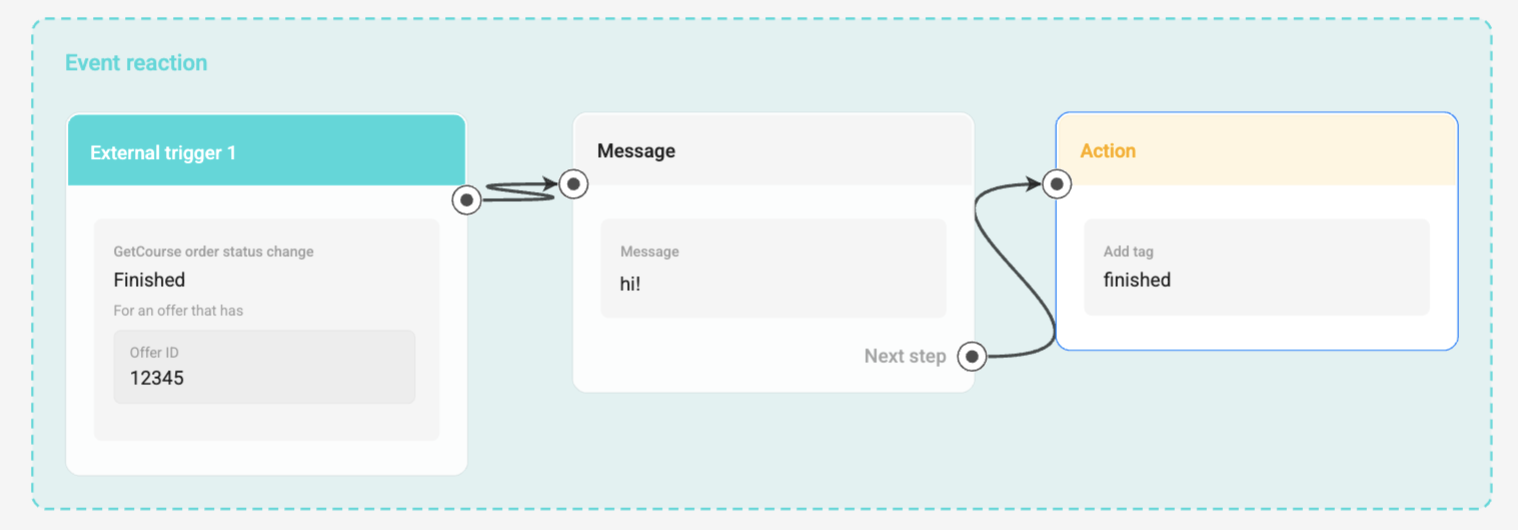
The External trigger step is placed separately from the bot’s main flow. You can’t draw an arrow to it from another step or draw an arrow from it into the main flow: it’s a standalone event handler. Inside the step, you connect Message and Action cards to each other.
When to use the External trigger step
Use the External trigger step when you need to respond to an event without disrupting the subscriber’s progress through the main funnel.
A regular bot flow is started by the Start step or by a subscriber’s action. If another event occurs at that moment, such as an order status change or a tag being added, a regular Start step may launch or restart the bot. The subscriber will then go back to the beginning of the funnel or move to a different step. Learn more in the article “External bot launch trigger in the Start step”.
The External trigger step works differently. It fires on the event separately and does only what you’ve set up: it sends a message and/or performs actions. The subscriber’s position in the main funnel stays the same.
For example, a subscriber is going through a warm-up funnel in the bot and pays for a course. When GetCourse reports that the order has been paid, the External trigger step can:
- Send a message: “Thank you for your payment! Your access to the course is now open”;
- Add the “Paid” tag;
- Send the purchase data to an external analytics system via Webhook.
The subscriber receives a payment confirmation, and their funnel continues from the same step. The funnel doesn’t start over or switch to another flow.
Which events can be tracked
In one block, you can select one or more event sources if you need to respond to different events:
- Subscribing to a group or channel;
- Attending a webinar in Bizon365;
- Order status in GetCourse;
- Adding or removing a tag;
- Changing a field.
The block is available in bots with a Telegram, VK, or MAX channel.
In a multichannel bot, some events, such as a tag change, may trigger a reaction separately for each channel where the subscriber has a contact.
What the External trigger step can do
When the selected event occurs, the External trigger step can send a message, perform actions, or do both.
The Message step supports:
- text messages;
- files;
- URL buttons.
Not supported: other button types and the Question card. The External trigger step doesn’t wait for a subscriber’s reply and doesn’t move them to the next step.
In the Action step, you can set up to 15 actions. These include, for example, adding and removing tags, changing a subscriber field, sending data via Webhook, and notifying an agent. Actions are performed in order. If one action fails, the rest will still be performed.
You can add up to three External trigger steps to one bot. Within one channel, the same trigger can’t be set up twice — neither in another External trigger step nor in the Start step of another bot.
Setting up an External trigger
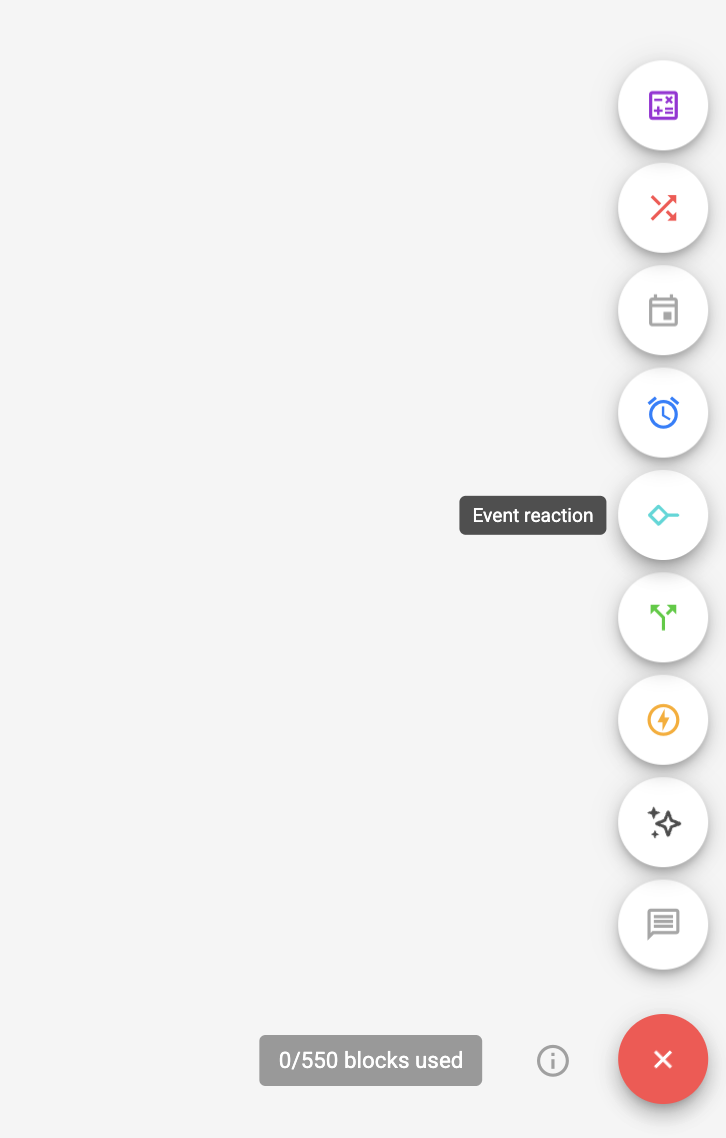
- Open the bot in the Flow Builder and add the Event reaction block from the palette.
- In the Add trigger drop-down menu, select the event source and fill in its conditions.
- Use the Add button to add a Message card, an Action card, or both. Only one Message step and one Action step can be added to a single trigger area, in any order.
- Set up the message text and the required actions.
Use cases
Confirm payment without interrupting training
You’re guiding a subscriber through a training flow. When GetCourse reports that the order has been paid, the External trigger step sends the message “Thank you for your payment!”, adds the “Paid” tag, and sends the purchase data to analytics. The subscriber receives a confirmation, and the training flow stays at the current step.
Send materials after a webinar
After a webinar, Bizon365 sends BotHelp data about who attended the broadcast. The External trigger step sends these subscribers the recording or additional materials. The subscriber receives the materials, and their position in the funnel stays at the original step.
Send data to a CRM when a tag is added
For example, when the bot adds the “Paid” tag to a subscriber, the External trigger step sends their data to the CRM via Webhook. No message is sent to the chat. The subscriber’s position in the funnel stays at the original step.
How it works
- The step responds to new events. If the tag was already added, the order was already paid, or the subscriber joined the channel before the step was enabled, the trigger won’t fire retroactively.
- For a field or variable, a change in value is what counts. Filling in an empty field for the first time isn’t considered a change for this step.
- If the step is disabled together with the bot or funnel, events that occur during that time aren’t queued. Once re-enabled, the trigger will fire only on new events.
- If a subscriber has unsubscribed, the step doesn’t fire for them.
- The External trigger doesn’t depend on where the subscriber currently is in the bot. It doesn’t stop another bot or change the step of the main flow.
Learn more about working with tags in the “Tags” article, and about sending data to external systems in the “External request” article.
If you haven’t found the answer to your question, ask us in the chat inside your account, or message us on Telegram at BotHelpSupportBot or by email at hello@bothelp.io
Get 14 days of full access to the BotHelp platform for creating broadcasts, automated funnels and chatbots.
Sign up for BotHelp
Get 14 days of full access for free — enough to build your first bot and test it on real subscribers.
Create account
Была ли статья полезна?

