
These fields are used to save information in the person’s profile.
The AI-agent can collect personal data and save it to the subscriber’s profile.
You can configure your AI agent to automatically record a subscriber’s responses into the specified profile field during the conversation.
Learn more about configuring the AI agent in this article.
Field types
Standard and custom fields
There are standard fields that are created by default: name, email, phone, UTM tags.
You can create a new custom field with any name. In the name, you can use Cyrillic and Latin letters, numbers, and underscore_.
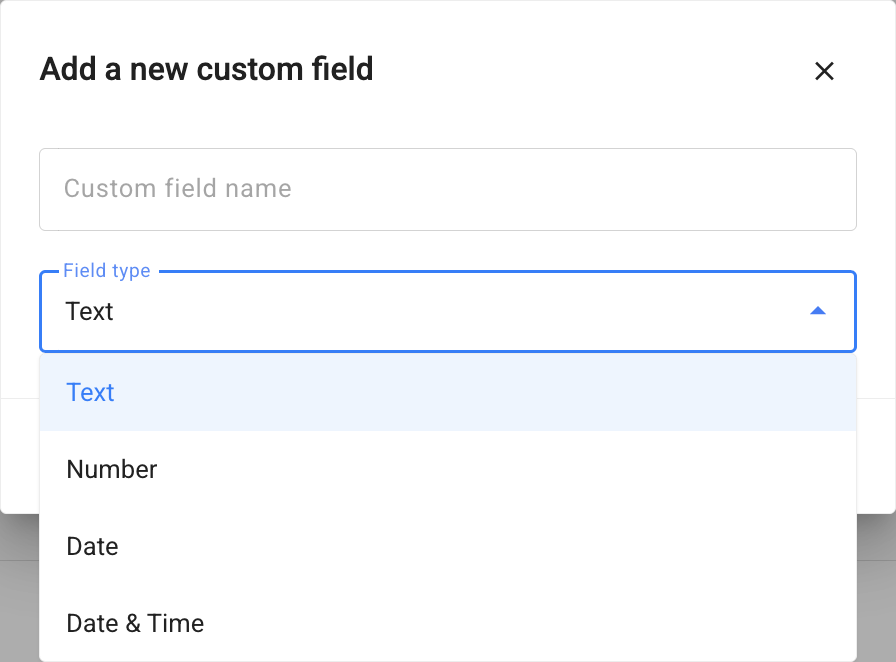
You can use a custom Date & Time field in Schedule blocks.
In the Schedule step settings, you can select a custom field of the Date & Time type.
- When the field value is updated, only new subscribers will use the new value. Subscribers who are already in the step will continue according to the original value.
- If the field is deleted or archived, the block becomes invalid and is highlighted in the Flow Builder.
- If the field is empty or contains a date/time in the past, the subscriber will follow the Date & Time Passed branch.
- When a flow is copied within the same workspace, the step settings are preserved. When copied to another workspace, the step settings are cleared, and subscribers are routed to the Date & Time Passed branch.
- The scheduled time is calculated using the workspace time zone. If the workspace time zone is changed, the values stored in custom fields remain unchanged.
This allows you to set a personalized schedule for each subscriber based on their custom field values.
Example use case: Starting a course individually for each student
Goal: Each student has their own course start date, and the lesson and reminder sequence should begin from that date.
Solution: Store the course start date in the subscriber profile using a custom field named start_at. The Schedule block uses this field: if the date is in the future, the subscriber waits until that time; if the date has already passed, they are routed to the Date & Time Passed branch. This makes it possible to launch the course individually for each student.
Text and numeric fields
Text field allows you to store text with any character set or a link. For example, a name.
In numeric fields, you can save numbers and perform mathematical operations with them. Learn more about numeric fields
The field type is selected when creating it.
When created, the text field will initially be empty, and the numeric field will have the value 0.
System Fields from Facebook* Messenger
For subscribers connected through the Facebook Messenger channel, BotHelp automatically populates the Gender system field in the subscriber profile.
The Gender field can be used to segment your audience, create gender-specific scenarios, and route subscribers through relevant branches in your flows.
Field values:
- Gender — Male, Female, or Not determined (displayed as male, female, and not determined in the English interface).
How the field is populated:
- The field is populated only once, when the user subscribes for the first time.
- The value is not updated after subsequent messages.
- If Facebook does not provide the user’s gender (for example, due to the subscriber’s privacy settings), the field remains empty.
How to use fields
- To save information
You can enter any data in this field: name, phone number, email, city, income, budget, favorite color, a child’s name, UTM tag, etc.
- For transmitting information
After the information is saved in the field, you can use webhook to transfer it to other systems: for example, to CRM, to an analytics system, to a webinar system or email broadcasting.
You can also send an email notification. The message text will display the fields and their data.
- For analytics
You can filter users by the presence or absence of the field and information in it. For example, you can filter only those who left a phone number.
How to create a field
- The “Name” and “UTM tags” fields are automatically added.
- In the User Input block, you can create a new field of any type. To do this, in the “Save to field” column, scroll to the very bottom of the list, select “+ Create field”, enter a name and select the type.
- You can create a field in the Action block. To do this, add the block itself, click Add Action and select “Actions with fields/variables”. Next, select the action “+Create field”, specify the name of the field and its value. The action type is set by default: “Set field”. You can’t change it.
The “Set Field” action type will create the text field In the settings in the “Custom fields” section.
Field data
Input verification
In the settings of the “Question” block, you can enable input verification.
🚩 If the subscriber does not enter data in the required format, the flow will stop.
- The email address has to contain Latin characters and the “@” sign.
- The phone number can contain from 4 to 15 characters. Digits, parentheses, hyphens, and spaces are allowed. The person’s profile will save the number without the characters.
- A field with the “Number” type will accept only digits.
🚩If number verification is enabled, the person will not proceed further in the chain until they enter the required value.
For the standard “Phone” field, you can disable the verification.
You can’t disable the verification for the custom “Number” field.
Verification condition in the flow
When setting up “Conditions” in the flow, it is important to take case into account.
Fields = macros
Each field automatically becomes a macro, and its value can be inserted into the text message.
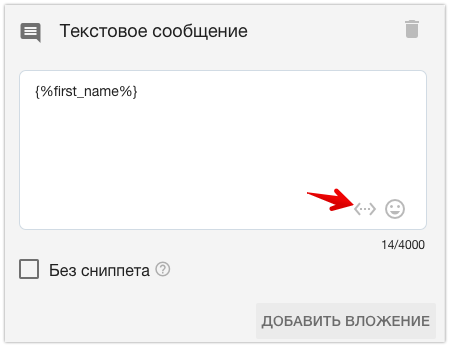
Learn more about macros in the article
How to remove an unnecessary field
If the field is no longer needed, you can archive it.
Fields in the “Archive”:
- Are hidden from all lists. You won’t find them in broadcasting, filters, or flows.
- Are hidden from uploads and APIs, people’s profiles — from everywhere.
- They continue to work in flows. If the field is used in the flow and is archived, data will continue to be recorded and read. The flow will not be disrupted.
- Archived fields are not sent to email.
If you need the field again, unzip it in the section “Settings” — “Custom fields” — “Field archive”.
If you haven’t found the answer to your question, contact us in the chat in your profile or email hello@bothelp.io
Get 14 days of full functionality of BotHelp, a platform for creating broadcasting, autofunnels, and chatbots.
Sign up for BotHelp
Get 14 days of full access for free — enough to build your first bot and test it on real subscribers.
Create account
Была ли статья полезна?