
Stopping a broadcasting
You can stop a broadcasting while it is being sent — this happens instantly. After stopping, you will be able to copy or delete the broadcasting.
Stopping broadcastings is available for Telegram.
To stop a broadcasting:
- In the list of sent broadcastings, click the red button next to the active broadcasting or the “Stop broadcasting” button in the broadcasting card.
If the broadcasting was sent to multiple channels at once, first open the channel list and select the required one. - Confirm your action in the pop-up window.
- The broadcasting will stop instantly. In the broadcasting statistics, you can see how many subscribers have already received the messages.
Important: a stopped broadcasting cannot be resumed.
Deleting a broadcasting
Deleting a broadcasting means that messages will also be removed for users who have already received them.
Deleting broadcastings is available for Telegram and VKontakte.
To delete a broadcasting:
- In the list of sent broadcastings, click the “Delete messages” button in the menu or in the broadcasting card.
If the broadcasting was sent to multiple channels at once, first open the channel list and select the required one. - Confirm your action in the pop-up window.
- The deletion process will start. You can track its progress in the list of sent broadcastings or in the broadcasting card.
- Once deletion is complete, the status will change to “Deleted”.
Important:
- “Gallery” type cards will not be deleted for subscribers.
- Only broadcastings sent or stopped less than 24 hours ago can be deleted.
- The deletion process cannot be interrupted.
- Deleted messages remain visible to you in chats with the status “Deleted for subscriber”, but subscribers will not see them.
Editing a broadcasting
Editing broadcastings is available for Telegram and VKontakte.
To start editing:
- In the list of sent broadcastings, click “Edit” in the menu or in the broadcasting card.
If the broadcasting was sent to multiple channels at once, first open the channel list and select the required one. - The broadcasting will open in edit mode.
- Make the necessary changes.
- Click “Start editing”.
- Confirm your action in the pop-up window.
- The editing process will start. You can track progress in the list of sent broadcastings or in the broadcasting card.
- Once editing is complete, the status will change to “Edited”.
Important:
- If you delete all content in the card, the broadcasting will not be edited.
- Only broadcastings sent or stopped less than 24 hours ago can be edited.
- Currently, only “Text” cards can be edited; others can only be deleted.
- Statistics are not updated after editing.
- In subscriber chats, the message will be updated and marked as “Edited”
Performance notes
Important: deleting or editing a broadcasting loads the channel the same way as sending it.
If you run deletion/editing and send another broadcasting simultaneously for the same channel, both processes will slow down.
Editing and deletion are only available within 24 hours after sending.
Why?
The Telegram API limits bots to 30 message actions per second. The platform ensures these limits are not exceeded to prevent your flow from being banned.
Searching broadcastings
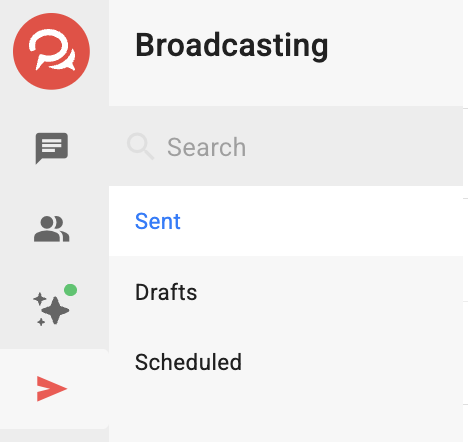
- Search is performed by broadcasting name.
- Search works within the section where it was created (Sent / Drafts / Scheduled).
Why weren’t all messages delivered?
- Some users may have unsubscribed after scheduling the broadcasting.
- If the broadcasting was edited or deleted during sending, statistics may update incorrectly and the message queue may be disrupted.
If you didn’t find an answer to your question, contact us via the in-app chat, write to Telegram BotHelpSupportBot, or email hello@bothelp.io.
Get 14 days of full platform access to create broadcastings, funnels, and flows in BotHelp.
Sign up for BotHelp
Get 14 days of full access for free — enough to build your first bot and test it on real subscribers.
Create account
Была ли статья полезна?