
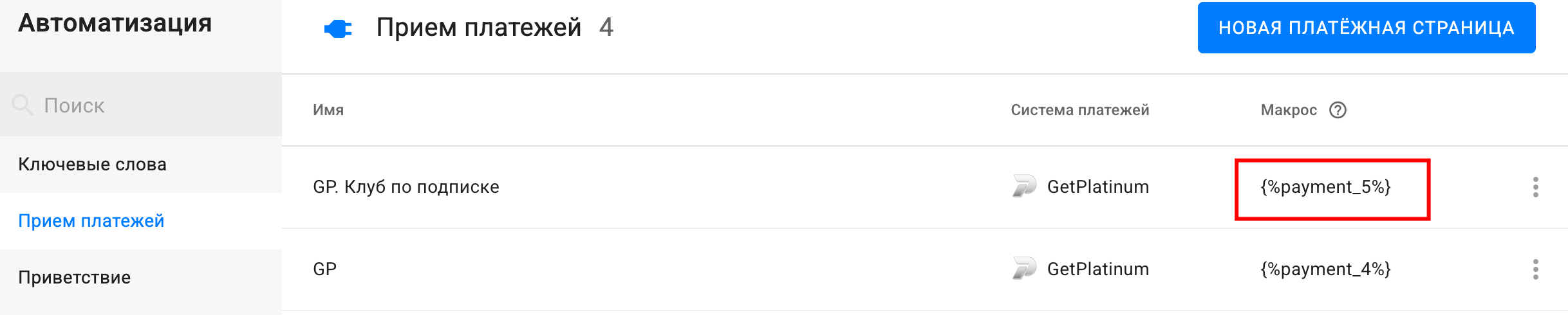
After you save the payment page, BotHelp creates a macro with the payment link.
Use only the macro:
-
in buttons;
-
in message text.
The macro automatically passes the subscriber’s data to GetPlatinum
(phone, email, UTM tags and ID) to correctly link the payment and automations.
The macro is available in Automation → Payments, in the Macro column.
Cancelling a subscription
Available only for payments of the Subscription.
How to set it up:
-
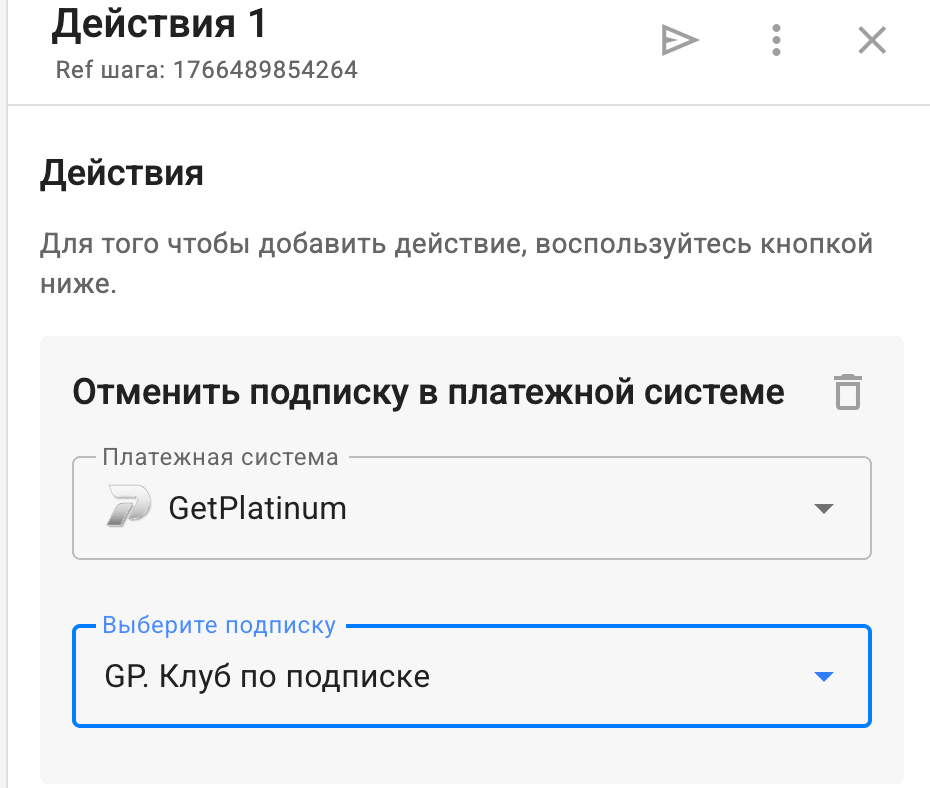
In the flow builder, add an Action.
-
Select Cancel subscription in payment system
(not to be confused with Unsubscribe). -
Specify the GetPlatinum subscription you need.
After the action runs:
-
the subscription is cancelled in GetPlatinum;
-
automatic charges stop.
How subscription cancellation works
-
The subscription becomes inactive in GetPlatinum.
-
There will be no new charges.
BotHelp initiates the cancellation, and GetPlatinum actually performs it.
Good to know
-
If the subscription was cancelled manually in GetPlatinum, BotHelp receives a webhook with the cancellation details.
-
Make sure this event is handled in BotHelp so that automations (removing access, removing from a channel, etc.) work correctly.
Limitations
-
The Cancel subscription in payment system action works only for subscriptions created in BotHelp.
-
If the subscription is already cancelled or wasn’t created through BotHelp, the action won’t work.
-
One Action step can cancel only one subscription.
If you did not find the answer to your question, feel free to contact us in the chat inside your dashboard, message us on Telegram at BotHelpSupportBot or email us at hello@bothelp.io
Enjoy the full functionality of the BotHelp platform for creating broadcasts, automated funnels, and chatbots — free for 14 days.
Sign up for BotHelp
Get 14 days of full access for free — enough to build your first bot and test it on real subscribers.
Create account
Была ли статья полезна?

