A multichannel flow is a flow that works across multiple messengers using one shared scenario. You create one flow, connect Telegram, VK, and MAX channels to it, and configure a single scenario in the flow builder. Messages are sent to subscribers across all connected channels, so you don’t need to maintain three separate copies of the same flow.
This is the standard way to create a flow: even if you connect only one channel, the flow is still created as a multichannel flow, and you can add other channels later without recreating it.
Capabilities
- One scenario for all channels: you edit one shared set of steps, and it is delivered to subscribers across all connected messengers.
- Any combination of Telegram, VK, and MAX channels.
- You can connect multiple channels of the same type — for example, two Telegram bots. The limit is up to 10 channels of the same type.
- The same account channel can be connected to multiple multichannel flows.
- Separate statistics for each channel and an overall aggregate across all channels.
Which channels can be connected
A multichannel flow works with Telegram, VK, and MAX channels in any combination.
Instagram*, Facebook* Messenger, WhatsApp*, and Viber channels are not supported in multichannel flows. They cannot be selected when creating a flow or added to an existing flow. For these messengers, you still create a regular single-channel flow — nothing changes here.
How to create a multichannel flow
- Go to Flows and click New Flow.
- Enter the flow name — this field is required.
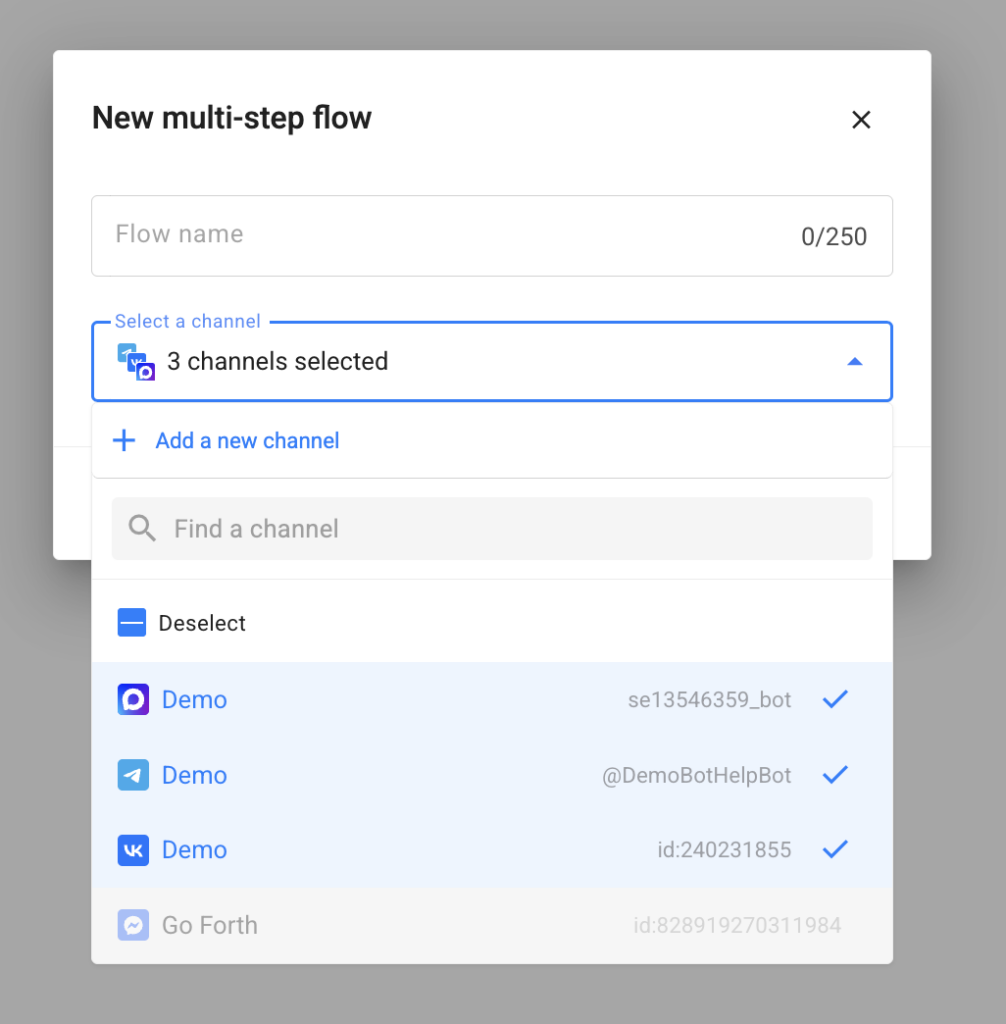
- Select one or more channels from the list: Telegram, VK, and MAX. You can also select multiple channels of the same type.
- For each selected channel, connect the specific bot, community, or channel from your account.
- Save the flow. A single multichannel flow is created. Its card displays icons for all connected channels and the ID of each channel.
How one scenario works
A multichannel flow has one shared step structure. You edit the same set of steps and add the content once, and it is delivered to all channels. The canvas indicates that the flow is multichannel and displays channel icons. Hover over the icons to see the list of channels and their IDs.
There are no separate tabs for individual channels within a step: the settings are shared.
Full functionality or shared functionality
The available elements in the editor depend on which channels are connected. The available functionality is automatically recalculated each time you connect or disconnect a channel.
- If you connect channels of only one type (for example, several Telegram channels), you have access to the full functionality of that messenger, just like in a regular single-channel flow.
- If you connect channels of two or three different types, the editor keeps only the features supported by all connected messengers. This is the shared, omnichannel mode.
What is available in shared mode
When different messengers are connected, you can use:
- formatted text and links;
- images with captions;
- videos and video notes;
- voice messages;
- files;
- galleries;
- questions;
- buttons (tracked and untracked links, links to steps, buttons under images and videos);
- actions such as launching a flow, transferring a conversation to an operator, notifying an agent, sending an event to Yandex.Metrica, making an external request, deleting a message, working with tags and profile fields, adding a delay, and creating a random outcome.
Some features are available only when channels of the same messenger are connected.
The Menu / Keyboard card is available only when channels of the same type are connected (multiple Telegram or multiple VK channels). It is not available for mixed channel combinations.
The Audio card is unavailable if VK is connected.
The Typing effect, calendar date insertion, mini-app button, and advanced formatting (monospace text, quote, spoiler, and code block) are available only when a single Telegram channel is connected.
How content is displayed in different channels
Subscribers in different messengers may receive the same step slightly differently when a particular format is not supported by the channel:
- Video note: delivered as a video note in Telegram, as a regular video in MAX, and skipped in VK.
- Share phone number button: displayed as a special button in Telegram and MAX, and as a text question in VK.
- Content protection from forwarding: supported only in Telegram.
- Image and file captions: not displayed in MAX.
- Videos larger than 50 MB from storage: sent to Telegram, but not to MAX or VK.
- Audio captions: displayed in Telegram and MAX.
The flow does not stop in these cases: an unsupported element is simply skipped in the channel where it is unavailable.
The Notify Agent action is shared across all connected messengers. The notification is sent to the channel where the subscriber contacted the flow and is sent on behalf of that channel. The agent must be subscribed to that channel.
Editor limits
Limits are determined by the most restrictive of the connected channels.
When different messengers are connected, the shared limits apply:
- up to 4,000 characters in a text message;
- up to 6 buttons;
- up to 40 characters in a button label;
- files up to 50 MB.
If channels of only one type are connected, the limits of that messenger apply.
If a limit is exceeded, the field is highlighted and the restriction and affected channel are displayed. The flow cannot be saved or published until the step is corrected.
Connecting and disconnecting channels
You can add a channel after creating the flow in its settings.
If you add a channel of a type that is already connected (for example, a second Telegram channel to a Telegram flow), the scenario does not change.
If you add a channel of a new type, a warning window appears explaining that the scenario will be recalculated for shared mode. After confirmation, the channel is connected and any step elements that are not supported by all channels are automatically removed.
If you click Cancel, the channel is not connected and the scenario remains unchanged.
You can disconnect any channel. Its subscribers will stop receiving messages, but their history and subscriber database are preserved. If you reconnect the same channel, the existing data will continue to work.
Please note: elements removed when switching to shared mode are not restored automatically. Add them again if necessary.
Deleting the flow removes the logic for all connected channels at once. Before deletion, a confirmation window displays the list of channels and subscribers.
Activating, stopping, and testing
The Activate and Stop buttons work for all channels of the flow at once. You cannot stop a single channel individually — to do this, disconnect the channel.
To test the scenario, use Test Run. This is a button with a dropdown menu. Click the arrow and select the channel in which you want to run the test.
Only one channel can be tested at a time. The selected channel is remembered for the next test.
The same channel selection is available in the Test from this step option inside the step editor.
Only active channels are available for testing. Disconnected channels are still displayed in the flow but cannot be tested.
The flow preview is available if at least one channel is active.
Switching to another flow
You can configure a subscriber transition to another flow.
The transition works only for channels that exist in both the current and target flows — that is, based on the intersection of their channels.
For example, if a subscriber came through a channel that is not connected to the target flow, the transition will not work for them.
A warning is displayed on the transition step showing the channels for which the transition is unavailable.
Telegram flow commands
The Telegram Menu for Channel setting is available in the flow settings only when one Telegram channel is connected.
If two or more Telegram channels are connected, this setting is hidden.
Flow links
Each channel has its own subscriber launch link. All links are available in the Links section, and each one can be copied separately.
If a flow has multiple channels of the same type, a separate link is generated for each channel using its ID.
You can also create a link to a specific step of the scenario. This link is generated in one action for all channels that support it — Telegram and MAX.
Direct launch links and step links are not available for VK.
The Share Flow section contains a general sharing option — a link, QR code, and widget that are not tied to a specific channel.
Subscribers
Each subscriber is associated with the channel through which they subscribed.
The same person in Telegram and VK is treated as two different subscribers and they are not merged.
All flow subscribers are displayed in the Subscribers section, where you can filter them by channel.
Subscriber profile fields are independent for each channel.
Tags use a shared account-wide directory but are assigned to subscribers within their respective channel.
Bulk actions work as usual: select subscribers from different channels and add them to the flow or stop them. Each subscriber is processed within their respective channel.
Channel statistics
In view mode, the tabs above the canvas display the available channels: Telegram, VK, MAX, and All Channels.
On an individual channel tab, step statistics are shown only for that channel.
On the All Channels tab, you see the overall aggregate.
If a metric is not applicable to a particular channel, No data is displayed.
Statistics are calculated from the date multichannel flows became available. Data from earlier periods is not migrated.
Use cases
- 📣 Reach your audience on Telegram, VK, and MAX: create one flow with a shared scenario instead of maintaining three separate copies.
- ✏️ Update a welcome message or promotion: edit it once and apply the changes across all channels.
- 📊 Compare channel performance: view separate statistics for each channel to see which messenger generates more engagement.
- 🔗 Run advertising campaigns on different platforms: use a separate launch link for each channel.
To send the same message to multiple channels at once, use a multichannel broadcast.
One flow across multiple channels of the same messenger
You can manage multiple Telegram bots, VK communities, MAX channels, or Facebook Messenger pages using one flow with a shared scenario.
- You can connect multiple channels of the same type to one flow in Telegram, VK, MAX, and Facebook Messenger*.
- Viber, Instagram*, and WhatsApp* remain unchanged and continue to use single-channel flows.
- The scenario, steps, cards, buttons, conditions, and actions do not change. Configure one scenario and it works across all connected channels.
Important details
- Each step has one shared configuration area that applies to all connected channels. The set of steps, cards, buttons, conditions, and actions remains the same.
- Welcome Message is available for multichannel flows and can be configured separately for each channel. The Enable for N channels checkbox allows you to enable it for selected channels. It is triggered when a subscriber launches the flow for the first time in their channel.
- The Test Run button has been updated. Clicking the button itself starts a test from the Start step, as before. Clicking the arrow next to it opens a list of channels, allowing you to choose which channel to test. Only one channel can be tested at a time. The same channel selection is available for Test from this step.
- Each connected channel has its own subscriber launch link in the Links section, and each link can be copied separately.
- MAX, Telegram, and VK can be combined. Facebook Messenger* cannot be combined with other messengers and can only be combined with other Facebook Messenger pages.
- You can connect up to 10 channels of the same type to one flow.
- For existing MAX, Telegram, and VK flows, you cannot replace a channel with Facebook*. Facebook* is disabled in the channel selection.
- The same account channel can be connected to multiple multichannel flows without restrictions.
- The Start step works like the Start step in a regular multichannel flow: it does not have channel selection, channel-specific keywords, Growth Tools, payment options, or an AI agent entry point.
- AI agent settings are shared across all channels. Separate settings for individual channels are not available.
- Flow filters work as before: a multichannel flow is displayed both when filtering by its messenger and when filtering by multichannel flows.
* Instagram, Facebook, and WhatsApp are owned by Meta, which is recognized as an extremist organization and is prohibited in the Russian Federation.
If you couldn’t find the answer to your question, contact us via the in-app chat, send us a message on Telegram at BotHelpSupportBot, or email us at hello@bothelp.io.
Get 14 days of full access to the BotHelp platform for creating broadcasts, automated funnels, and flows.
Sign up for BotHelp
Get 14 days of full access for free — enough to build your first bot and test it on real subscribers.
Create account
Была ли статья полезна?