
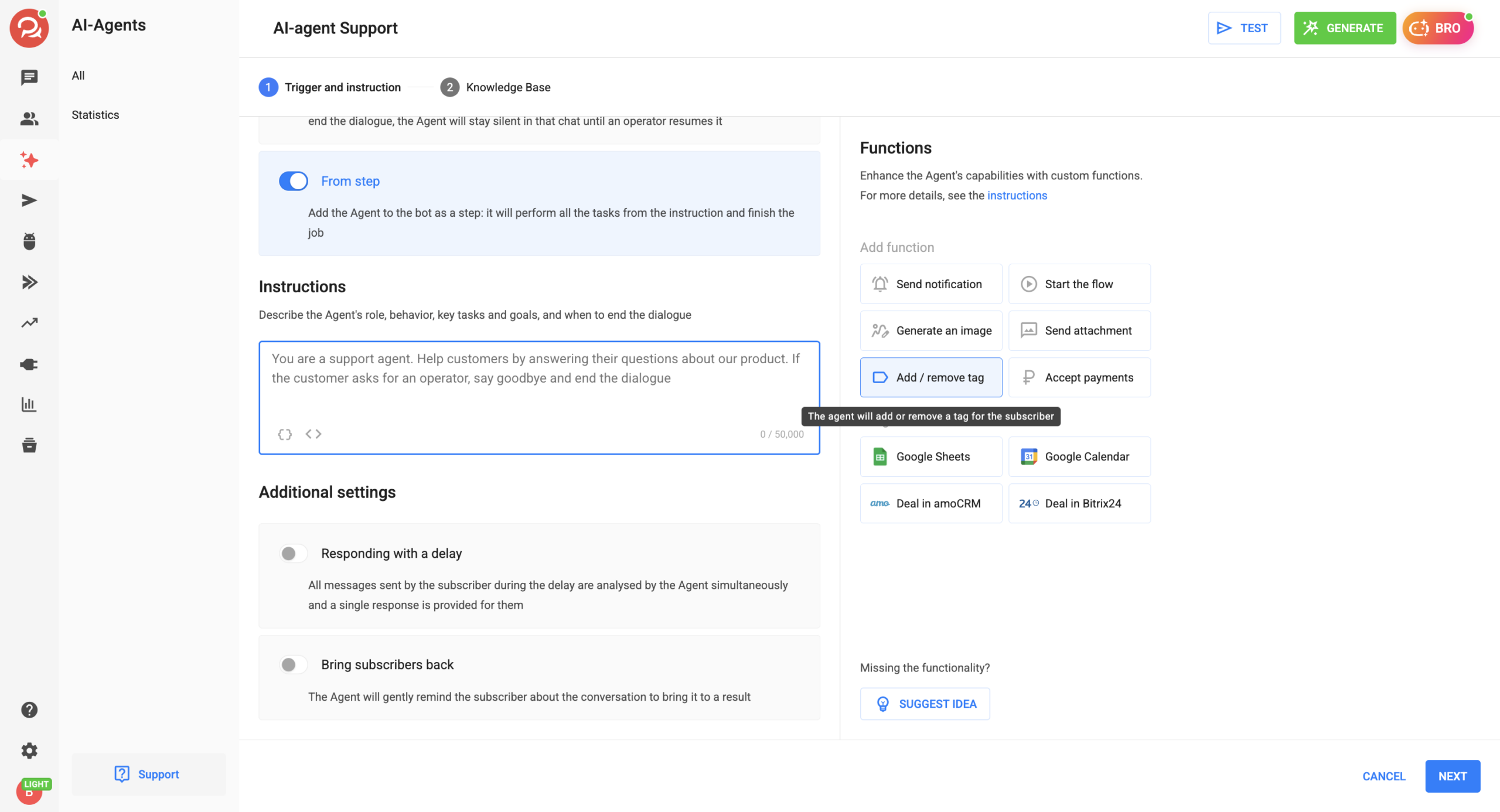
Add / remove tag is an AI agent function that adds a tag to a subscriber or removes it when a specified event happens in the dialog. Tags let you segment subscribers and run separate bots, broadcasts and conditions for each segment.
What the function can do
- You can add or remove a tag. The settings have Add and Remove tabs for this.
- You can specify several tags in one function.
- You describe the event that triggers the function in plain text.
- You can add the function to an agent several times, for example to add different tags for different events.
- You can also add a tag without a separate function, inside any other agent function.
How to connect the function
- In the AI agent settings, go to the Launch and instructions step and select the Add / remove tag card in the Functions block.
- Describe the event when the agent should add or remove the tag. For example: “The subscriber named a budget above 50,000 rubles and said they make the decision themselves.”
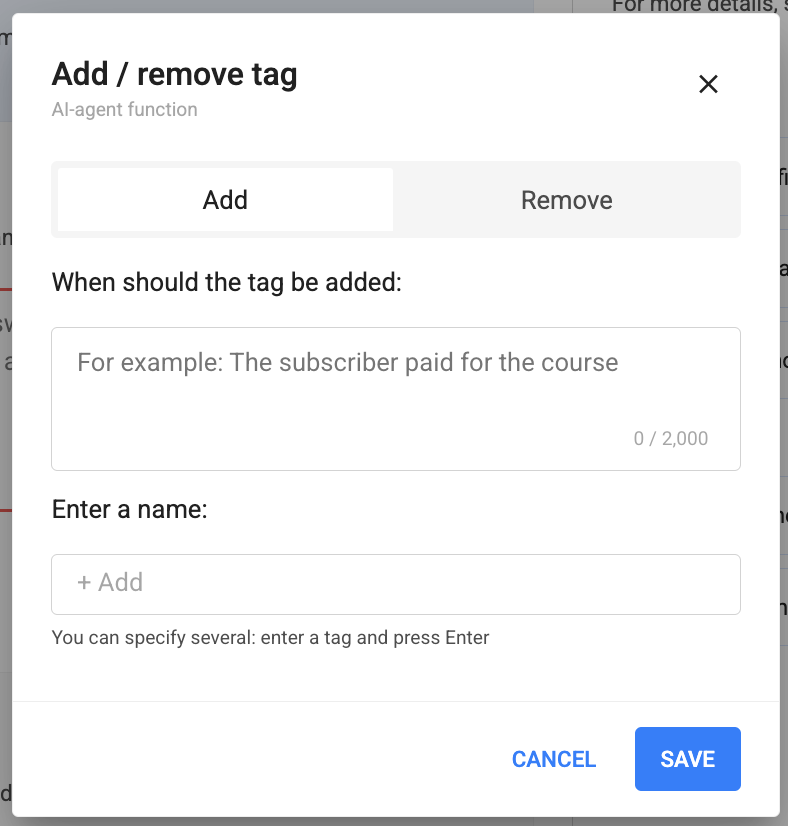
- Select the Add or Remove tab.
- Enter the tag name and press Enter. You can specify several tags.
- Save the function.
- Test the agent: take a test dialog up to the event you need and check the tag in the subscriber’s card.
Tags in other functions
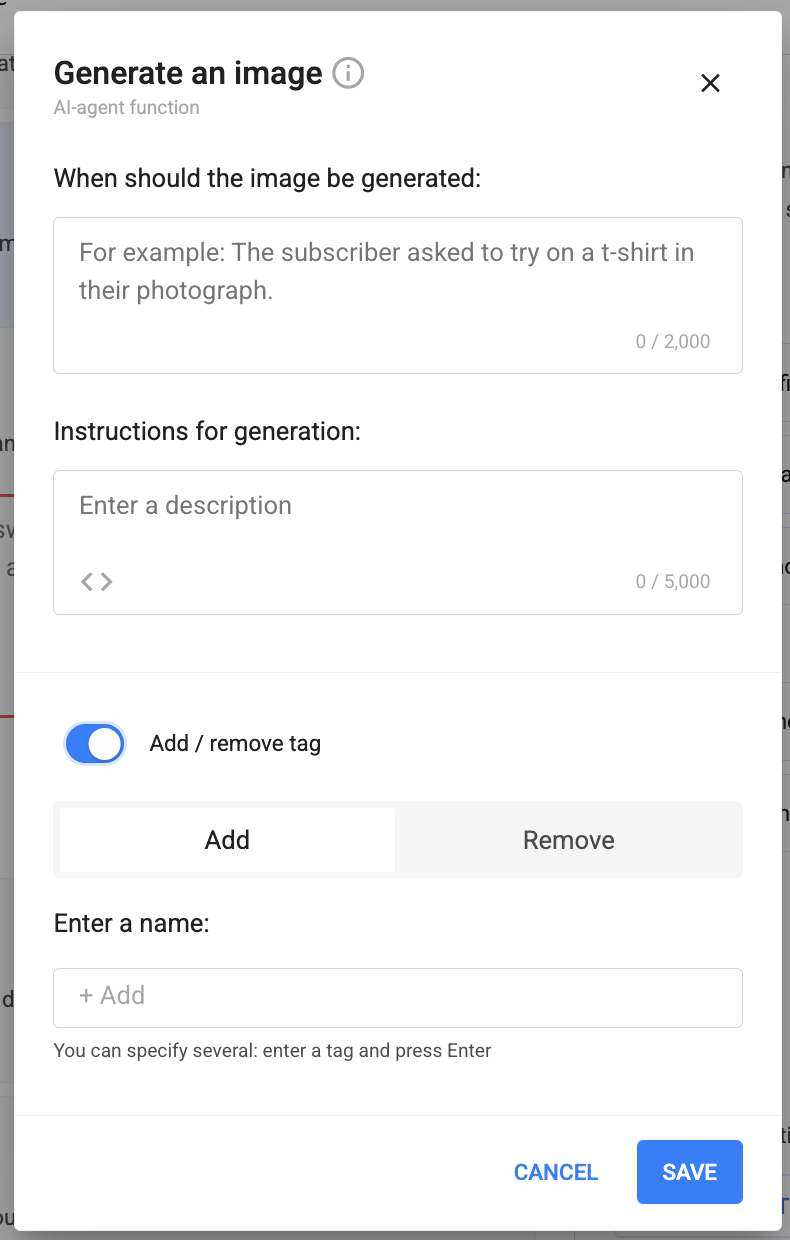
You don’t need a separate function to add and remove tags. Every agent function has an Add / remove tag toggle at the bottom of its settings window. The tag is added or removed when the function itself runs, for example when the agent creates a meeting in Google Calendar or sends a payment link. You don’t need to describe the event separately.
How to enable it:
- Open the settings of the agent function you need.
- Turn on the Add / remove tag toggle.
- Select the Add or Remove tab.
- Enter the tag name and press Enter. You can specify several tags.
- Save the function.
Use cases
🎯 Lead qualification. The subscriber names a budget above the threshold and makes the decision themselves, so the agent adds the “qualified” tag. You use it to launch a bot that offers a consultation.
🙋 Handing off to an operator. The agent doesn’t know the answer to a question, so it adds the “call_operator” tag. In the Dialogs section, a team member uses the Tags filter to see who needs their reply.
✅ Goal achieved. The agent has completed all the tasks from the instructions, so it adds the “goal_achieved” tag. You can exclude these subscribers from warm-up broadcasts.
📅 Booking a meeting. The tag toggle is on in the Google Calendar function. After booking, the subscriber gets the “meeting_created” tag, which launches a bot with a meeting reminder.
💳 Payment link. The tag toggle is on in the Accept payments function. The subscriber gets the “payment_link” tag when the agent sends them the link. If your payment automation adds the “paid” tag after payment, these two tags make it easy to find subscribers who got the link but didn’t pay.
You can find the agent’s other functions in the article “What is an AI-agent”.
If you haven’t found the answer to your question, ask us in the chat inside your account, or message us on Telegram at BotHelpSupportBot or by email at hello@bothelp.io
Get 14 days of full access to the BotHelp platform for creating broadcasts, automated funnels and chatbots.
Sign up for BotHelp
Get 14 days of full access for free — enough to build your first bot and test it on real subscribers.
Create account
Была ли статья полезна?

