
amoCRM is a software where you can store all customer data, starting from the moment the first request is received and up to the very last order.
The integration between BotHelp and amoCRM allows you to automatically:
- create deals and contacts from BotHelp and update them;
- transfer subscriber custom fields;
- communicate with subscribers directly from the amoCRM deal card.
What data is transferred to amoCRM
The data that is entered in the contact card in the corresponding amoCRM system fields:
- first name,
- last name,
- phone number,
- email,
- person’s CUID. To transfer this parameter, we automatically create a group of “BotHelp” fields with the “BotHelp_CUser_ID” field. Do not delete it, it may affect the correctness of the integration.
- messages.
The data that is entered in the transaction card in the corresponding amoCRM system fields:
- All UTM tags.
In addition, it is possible to set up the transfer of any custom field of a BotHelp person to any contact or transaction field in amoCRM. Examples will be provided below.
Enabling integration
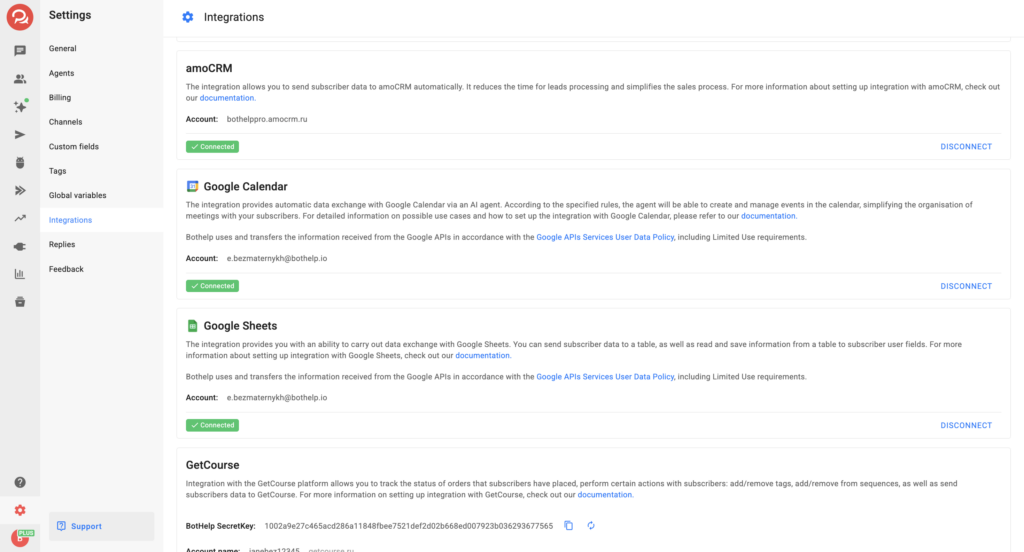
1. Go to your profile settings in the “Integrations” subsection.
2. Find the “amoCRM” block from the list of integrations and click Add Integration.
3. A page will load with an access request from amoCRM. Select the account you want to integrate with from the list.
IMPORTANT! In order for your amoCRM account to appear in the list, you have to be logged in to this account in the same browser.4. After selecting an account, click the Allow button to give BotHelp access to the selected amoCRM account.
5. After successful activation, the connected account and the “Connected” status will be displayed in your BotHelp profile in the “Integration with amoCRM” section.
Setting up the “Transfer data to amoCRM” action
This action allows you to create a new transaction and contact in amoCRM based on the data sent about the BotHelp person.
1. Go to the BotHelp bot builder and add an “Action” block.
2. In the list of actions, select “Transfer data to amoCRM”.
3. Choose a specific pipeline from your connected amoCRM account.
4. Select a pipeline stage from the dropdown list corresponding to the chosen pipeline.
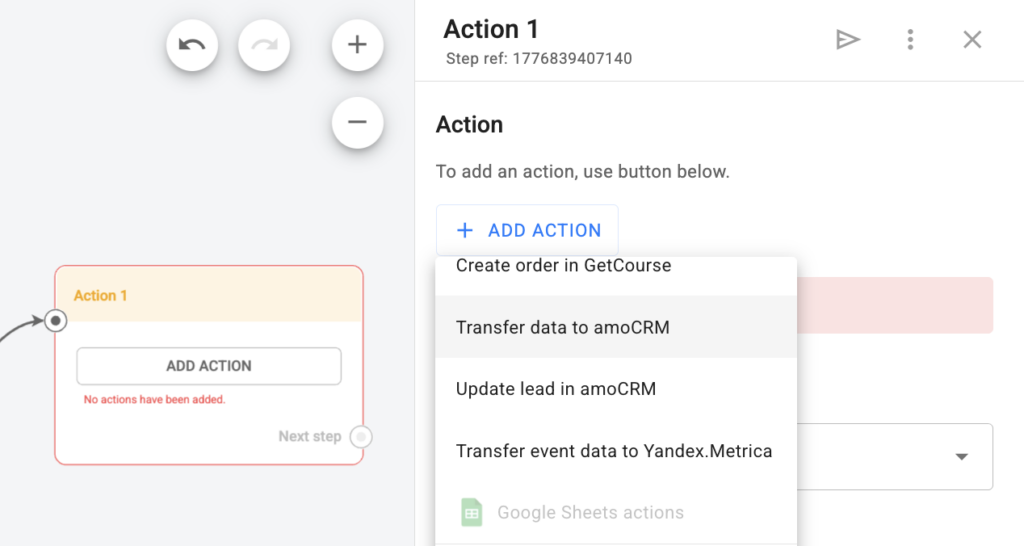
5. Configure the action.
- By default, the following data is transferred: first name, last name, email, phone number, UTM tags, and CUID.
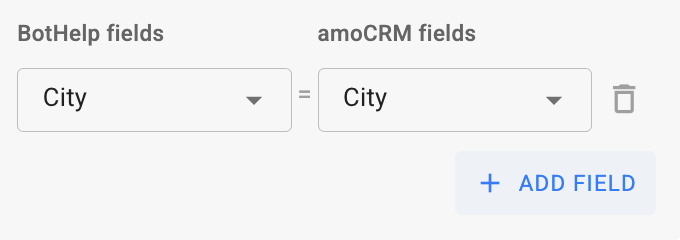
- Add custom fields to be sent to amoCRM. To add a custom field whose value should be transferred to amoCRM, click “Add field”.
In the fields that appear, select two fields:
- the first one is the subscriber field in BotHelp, whose value will be sent to amoCRM;
- the second one is the deal or contact field in amoCRM where the value received from BotHelp will be saved.
Transfer messages to amoCRM
Allows you to communicate with a subscriber directly from the deal card in amoCRM.
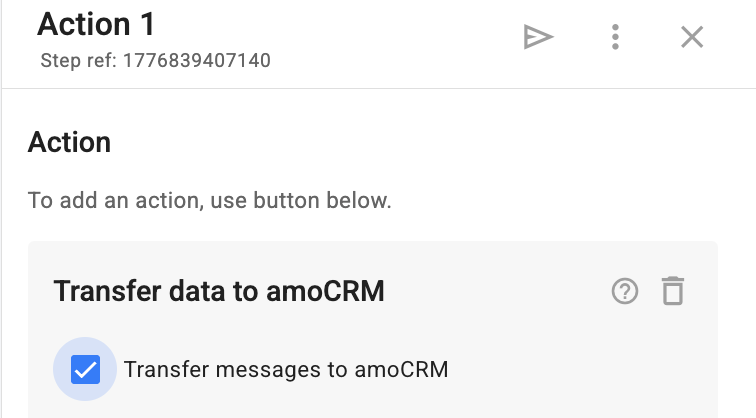
1. In the BotHelp bot builder, select the “Action” block and add an action called “Transfer data to amoCRM”.
2. Enable the checkbox “Transfer messages to amoCRM” (it is disabled by default).
3. Done! When a subscriber reaches this step, all new messages will be transferred in both directions: from the bot to BotHelp and amoCRM, and from amoCRM back to the subscriber and BotHelp.
Features of dialog transfer:
Messages are transferred between amoCRM and BotHelp for both human messages and the following button interactions:
- Menu buttons
- Inline buttons that lead to a specific step
- Buttons in the “User imput” block
- Keyboard buttons (for VKontakte and Viber)
The following button actions are not transferred:
- URL buttons (with or without tracking)
- Launching a mini app
Bot system messages and broadcastings are not sent.
If a subscriber is on a “User Imput” step, messages from amoCRM are temporarily blocked until the step is completed.
BotHelp displays a system message indicating the start of transfer. It includes a “Stop transfer” button. To resume transfer, you need to send the subscriber again to the “Transfer data to amoCRM” step — a new deal will be created.
Dialog transfer stops automatically if:
- the subscriber is deleted in BotHelp, or
- the amoCRM integration is disabled in the “Integrations” section.
If a deal and contact are deleted in amoCRM but the integration is still active, the next subscriber message will create a new deal.
Conversations in amoCRM are linked to the customer, not to a deal. Therefore, the same chat is visible in all deals of that customer.
If the bot is deleted, transfer is not disabled — the dialog in amoCRM remains active.
Supported content types: text, emojis, and files up to 50 MB.
Important: a message from amoCRM will be sent only to the chat currently open for the subscriber. Make sure the selected chat matches the subscriber you are communicating with.
Messages from AI agents are also transferred to amoCRM if dialog transfer is enabled.
Setting up the “Update lead in amoCRM” action
This action allows you to update a lead and the contacts of that lead in amoCRM based on subscriber data sent from BotHelp.
Features of lead updating
- The lead is searched within the selected pipeline.
- To find a lead, you can set additional filters based on its fields.
- You can configure updates for any field of the found lead or contact.
- The found lead can be moved to any pipeline and any stage.
Important: when configuring additional field mapping, field types must match: BotHelp text fields must be sent only to amoCRM text fields, numeric fields to numeric fields, etc. If field types do not match, the integration will not work and data will not be transferred.
Setting up an action
1. Go to the flow constructor and add the “Action” block.
2. In the list of actions, select “Update lead in amoCRM”.
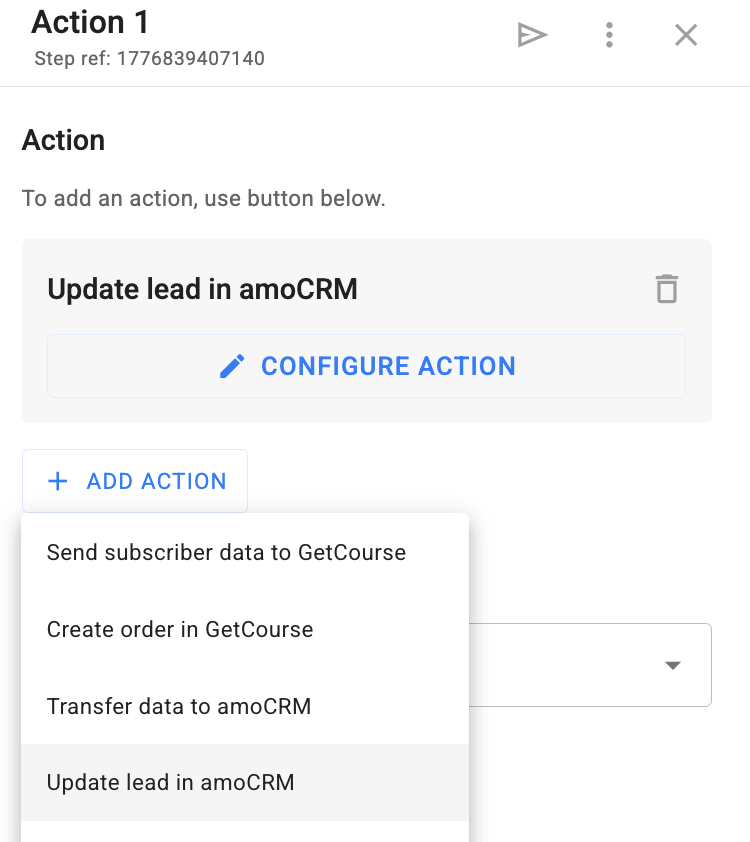
3. Set up the action:
- To open the action settings window, click on “pencil”.
- Select the amoCRM funnel where you want to find a lead.
- In the “Filter” section, if necessary, add a field value that will be additionally checked when searching for a transaction.
- In the “Change pipeline or stage” section, specify the funnel and the step of the funnel to which you want to move the found transaction.
- In the “Update fields” section, you can specify which fields of the found transaction and which fields of the contact of this transaction need to be updated.
IMPORTANT! If several transactions were found according to the specified conditions and filters, then all of them will be updated.
4. It’s done! Launch the flow. At this step, the transaction found in amoCRM will be updated and moved to the specified step.
You can update an existing lead without changing its position in the pipeline. This allows you to send new data to the customer card without unnecessarily affecting the sales process.
- Update of a lead without mandatory selection of pipeline and stage;
- If the pipeline and stage are not specified, the lead is not moved—only the data is updated;
- Email and phone are not required to update the lead;
- Lead search is performed by the subscriber’s CUID;
- If a lead is found, a new one is not created, including message transfer;
- If a lead is not found, a new one is created using the current logic;
- A “Delay” step is not required to update leads;
- Only active stages are shown in the stage list;
- New stages appear automatically after activation.
Duplicate leads
Duplicate leads in amoCRM are related to the settings of the amoCRM account itself.
When a client sends a message in chat, amoCRM looks for an open conversation and adds the message to it. If there is no open conversation, amoCRM creates a new one in the most recently created customer, or—if none exists—in the lead associated with that customer.
To avoid duplicates, go to amoCRM settings → “Chats and messengers” section → find “Conversations” and enable the rule:
“Create a conversation in a new lead only if the customer has neither active nor closed leads.”
After that, new leads will no longer be created with every message.
Duplicate control
Now, for leads created in amoCRM via BotHelp, you can use amoCRM’s built-in advanced duplicate control.
What you need to do to make it work:
- Connect the amoCRM integration in BotHelp using a user with an amoCRM administrator role, if it has not been connected yet.
- If the integration was already connected by an amoCRM administrator:
- the duplicate control feature is added automatically;
- you only need to activate it in the settings (see step 4).
- If the integration was connected by a non-admin user:
- reconnect the integration in BotHelp using a user with an amoCRM administrator role.
- In the amoCRM pipeline settings, activate the BotHelp widget.
- In the source settings, disable sources with limited duplicate control support, including the BotHelp widget.
In the duplicate control rules settings, configure the desired duplicate handling logic.
This way, you will have fewer duplicates in your CRM, less manual cleanup of leads, and more accurate sales analytics.
How to set up integration with amoCRM for another flow?
You can configure the “Transfer data to amoCRM” action in different flows within your BotHelp account—there is no need to set up a separate integration for each one.
If you haven’t found the answer to your question, contact us in the chat in your profile or email hello@bothelp.io
Get 14 days of full functionality of BotHelp, a platform for creating broadcasting, autofunnels, and chatbots.
Sign up for BotHelp
Get 14 days of full access for free — enough to build your first bot and test it on real subscribers.
Create account
Была ли статья полезна?