
You can attach the following to a text message in VKontakte:
- photo,
- gallery,
- video,
- group post,
- document,
- product,
- audio recording.
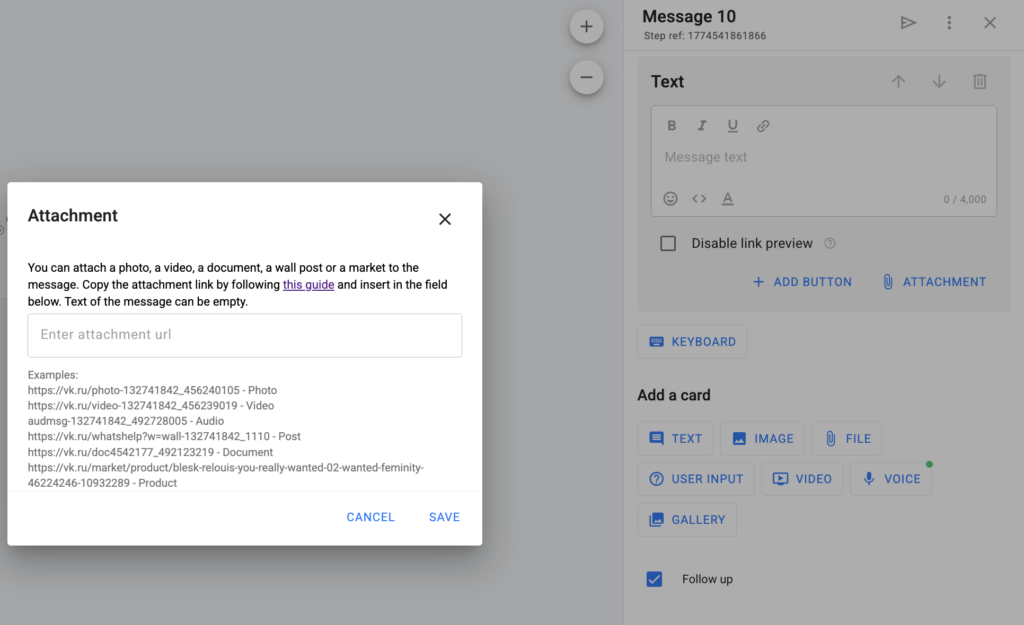
Attention! The attached file must be open and accessible to everyone.
Examples of necessary links are listed below the input field. You can attach multiple attachments to one card.
Image
Copy the link to the image and paste it into the input field.
Example: https://vk.com/photo-132741842_456240105
Gallery
In VKontakte, you can send image galleries in flows, broadcasts, and auto-broadcasts. The format is fully compatible with Telegram.
- The “Gallery” option is available in VKontakte cards within the builder, broadcasts, and auto-broadcasts;
- You can add 2 to 10 images in a single message;
- Captions for the gallery are supported.
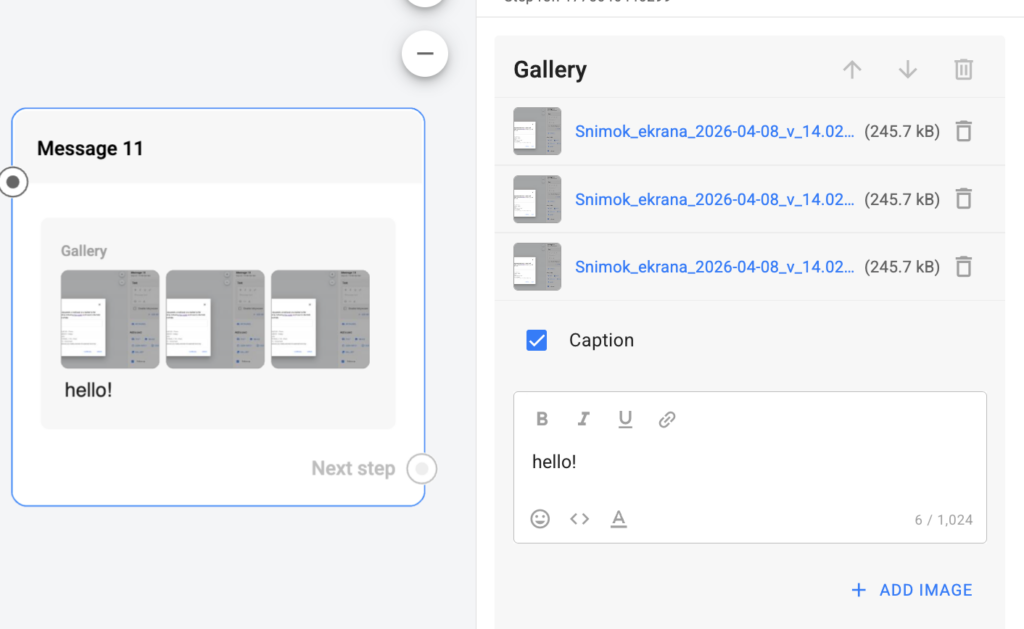
- Images are sent in a single message in the specified order.
- Galleries are correctly copied between Telegram and VKontakte.
- In unsupported channels, the card is removed.
Video
Upload the video to a VKontakte community or personal account.
Open the video and click More → Export below it.
Copy the direct link and paste it into the flow step in BotHelp.
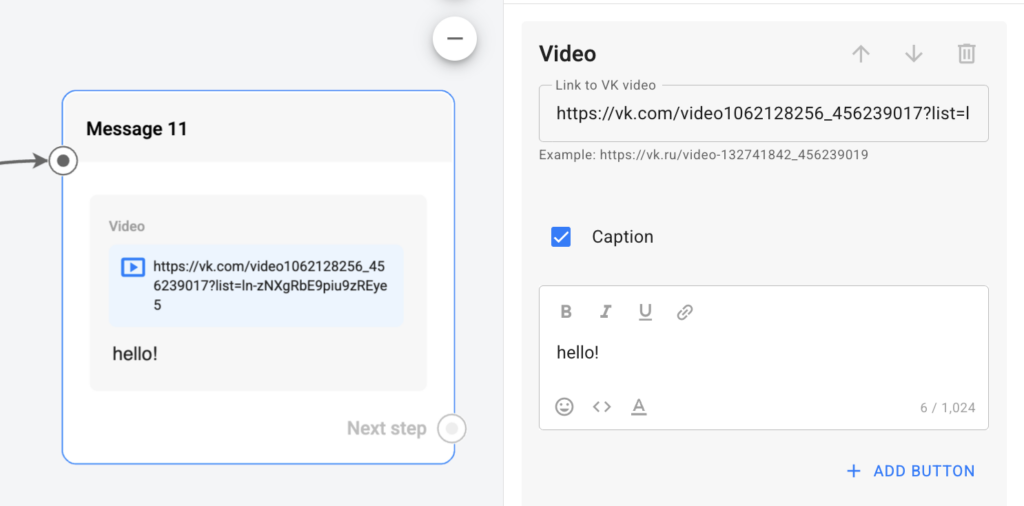
Example: https://vk.com/video-232258267_456239017
When editing a video, you can set its privacy. Go to Edit → Publication → Privacy → Who can watch this video? → People with the link.
You can send video materials to subscribers that are not publicly accessible. This functionality is available for flows, broadcasts, auto-broadcasts, and accompanying messages in Automations (Welcome messages, Keywords). Videos placed in a Video card are displayed in the preview within the dialog in VKontakte.
Copy a link like https://vk.com/video-232258267_456239017?list=ln-IZpzhwBhbdjydpk7ix.
Click Save.
Paste the link with the configured privacy settings into the flow step in BotHelp.
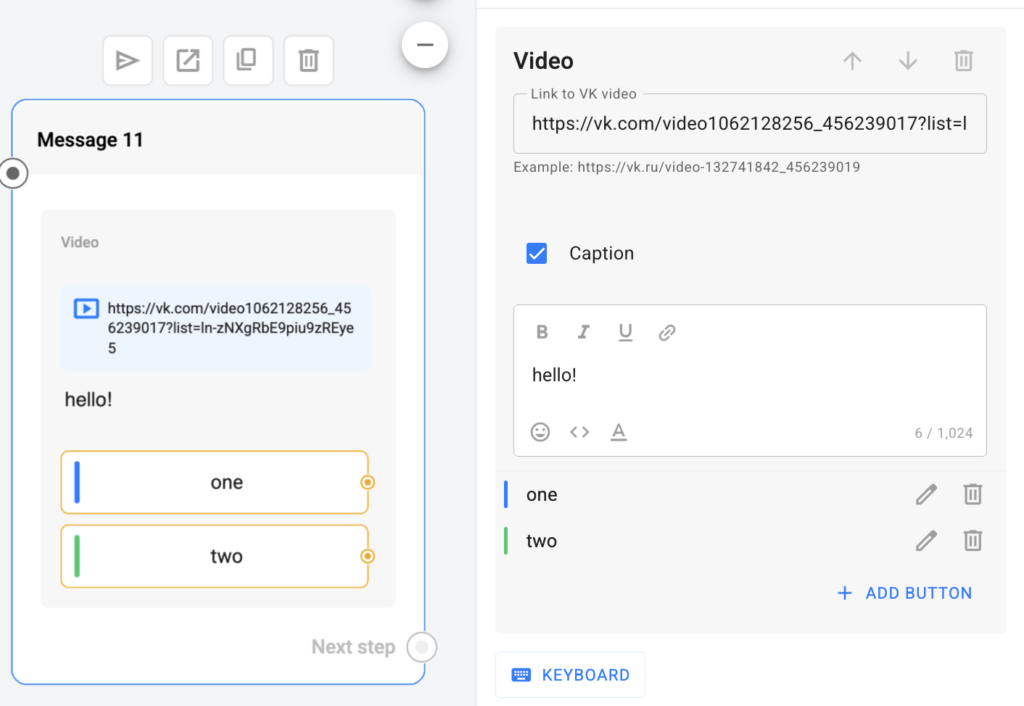
You can add buttons and captions to videos in messages. This allows you to make the video part of a scenario: guide the user through a funnel, provide actions, and collect responses directly from the video.
Post
Open the post, copy the link to it and paste it into the input field.
Example: https://vk.com/whatshelp?w=wall-132741842_1110
Important. It is possible to attach only one attachment with the “post” type to one text block. If you need to send multiple attachments with this type, then you need to use multiple text blocks.
Product
Open the product, copy the link to it and paste it into the field.
Example: https://vk.ru/market/product/blesk-relouis-you-really-wanted-02-wanted-feminity-46224246-10932289
Audio recording
You can’t take a link to an audio recording in VKontakte, so go to the page code and copy the audio recording ID.
You can attach any audio recording. It doesn’t matter whether it is in your group or not. The main thing is for people to have access to it.
1. Go to the “Music” section of VKontakte.
2. Find the desired song and right-click on it.
3. Select “View item code”.
4. In the highlighted section of the code, find the data-full-id tag and copy everything inside the inverted commas.
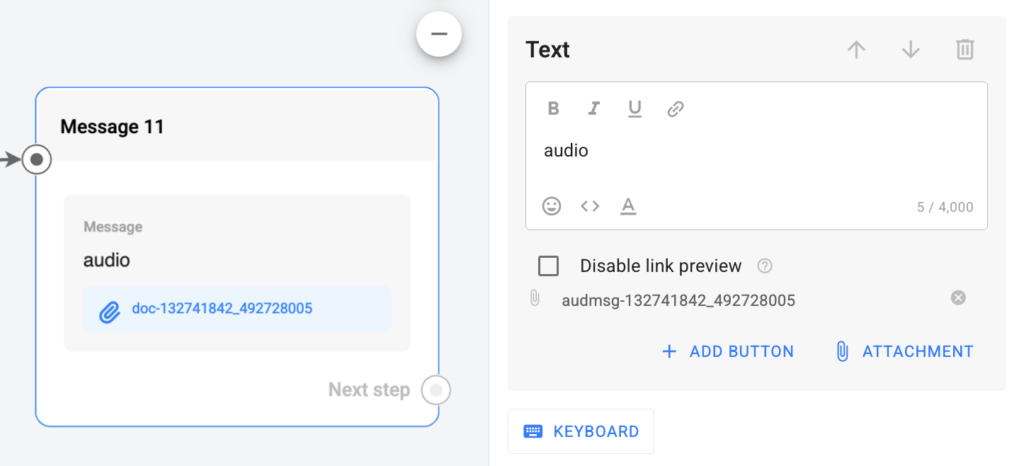
5. Paste the copied identifier into the input field and add the word “audio” in front of it.
Example: audmsg-132741842_492728005
Document
Add the document to a group or to a page. Please note that the document type has to be “Another document”. Copy the link to the document and paste it into the field.
Example: https://vk.com/doc4542177_492123219
Instructions for Adding a Document as an Attachment in a VKontakte Flow
- Go to a public VKontakte community and make sure the “Files” section is available, or add it via Manage → Sections.
- On the community’s main page, open the Files section and click Add File.
- Upload the required file and select Other file as the type before saving.
- After uploading, the file will be available in the community under the Files section.
- When opening the document, the address bar will display a link to it.
- Copy the link and use it in BotHelp; anything after the
?in the URL can be removed. - In the VKontakte flow, click Add Attachment, paste the link, and click Save.
Important: You cannot add a voice message on behalf of a VKontakte community.
Available Cards for VKontakte
- Text
- Image
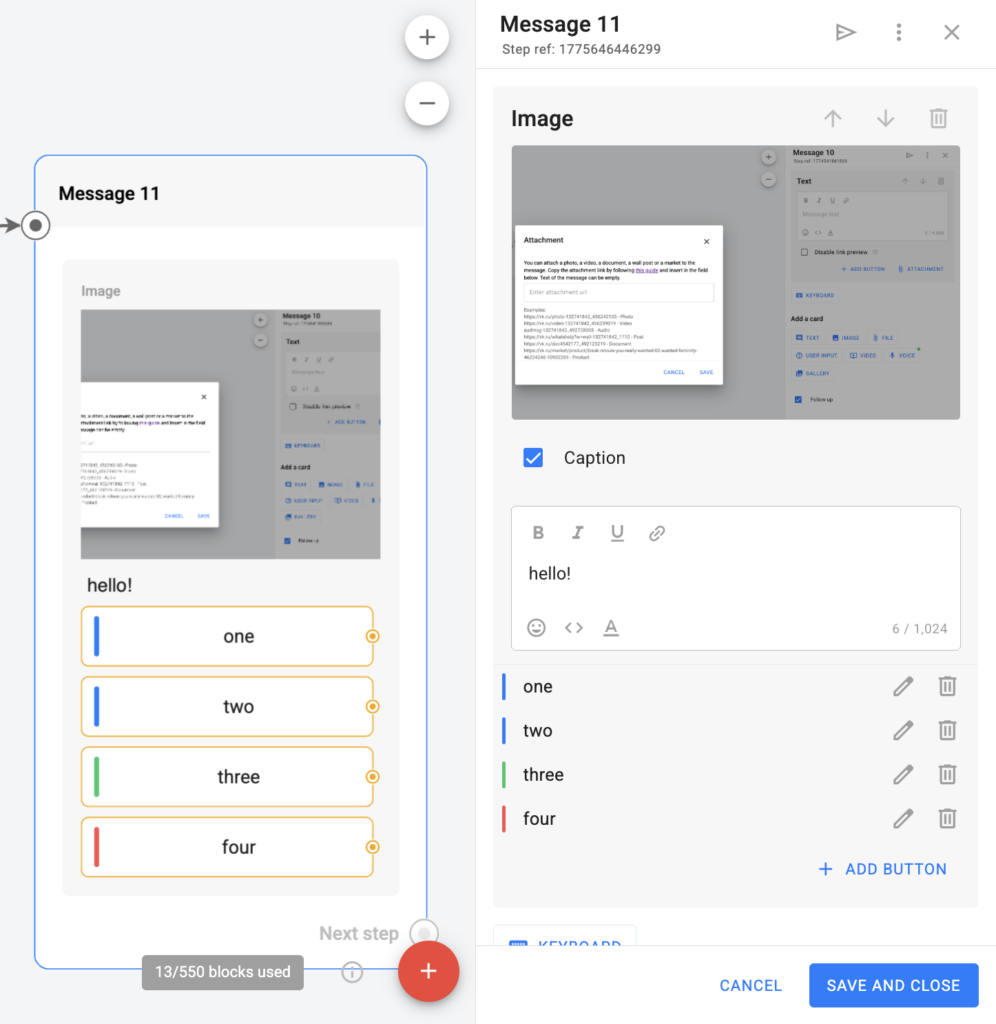
In broadcasts, when selecting the VKontakte channel, an Image card includes a Caption checkbox (similar to Telegram).
- When the checkbox is activated, a field appears for entering a caption of up to 1024 characters.
- Text, emojis, macros, and formatting are supported.
- Captions are preserved when copying and editing a broadcast.
- Buttons can be added to captions. The logic and behavior of buttons fully correspond to buttons in a Text block.
- When converting to Telegram, caption and button settings are preserved.
- This functionality is also available in Growth Tools, Automations, and Flow Builder in blocks where you can add an image.
Important: Not available for multi-channel broadcasts.
Supported Attachment Types
- File (document or .gif up to 50 MB)
- User Input
- Video by link
- Voice message (.ogg format, up to 15 MB, roughly 60 minutes)
Voice messages in VKontakte can be sent:
- In flows, in the Message block
- In broadcasts and auto-broadcasts
- In automations (Welcome messages, Keywords, and Payments)
If you haven’t found the answer to your question, contact us in the chat in your profile or email hello@bothelp.io
Get 14 days of full functionality of BotHelp, a platform for creating broadcasting, autofunnels, and chatbots.
Sign up for BotHelp
Get 14 days of full access for free — enough to build your first bot and test it on real subscribers.
Create account
Была ли статья полезна?