
Bring subscribers back
Bring subscribers back is an AI agent setting that lets the agent message a subscriber on its own if they’ve stopped replying. You describe what to remind them about, how many times and on what schedule in plain text. The agent turns your description into a schedule and writes a new reminder text each time.
When to use it
📱 The agent asked for a phone number, but the subscriber went silent. The agent reminds them once a day to send the number.
⏳ The subscriber abandoned a quiz halfway through. The agent reminds them after 15 minutes, then after an hour, then after a day.
📅 A webinar is coming up. The agent reminds the subscriber about it once a day until the date in a field of the subscriber’s card.
💳 The subscriber got a payment link but didn’t pay. The agent keeps reminding them until the subscriber gets the tag that the payment automation adds after payment.
What it can do
- Reminders work in any channel of your account and with both ways of launching the agent: In a channel and From a bot step.
- The agent writes each reminder from scratch based on your description, so reminders in one series don’t repeat each other.
- You set the schedule in words: pauses, repeats, time of day, end date and stop condition.
How to turn on reminders
- In the AI agents section, open the agent you need.
- On the Launch and instructions step, turn on the Bring subscribers back toggle in the Additional settings block.
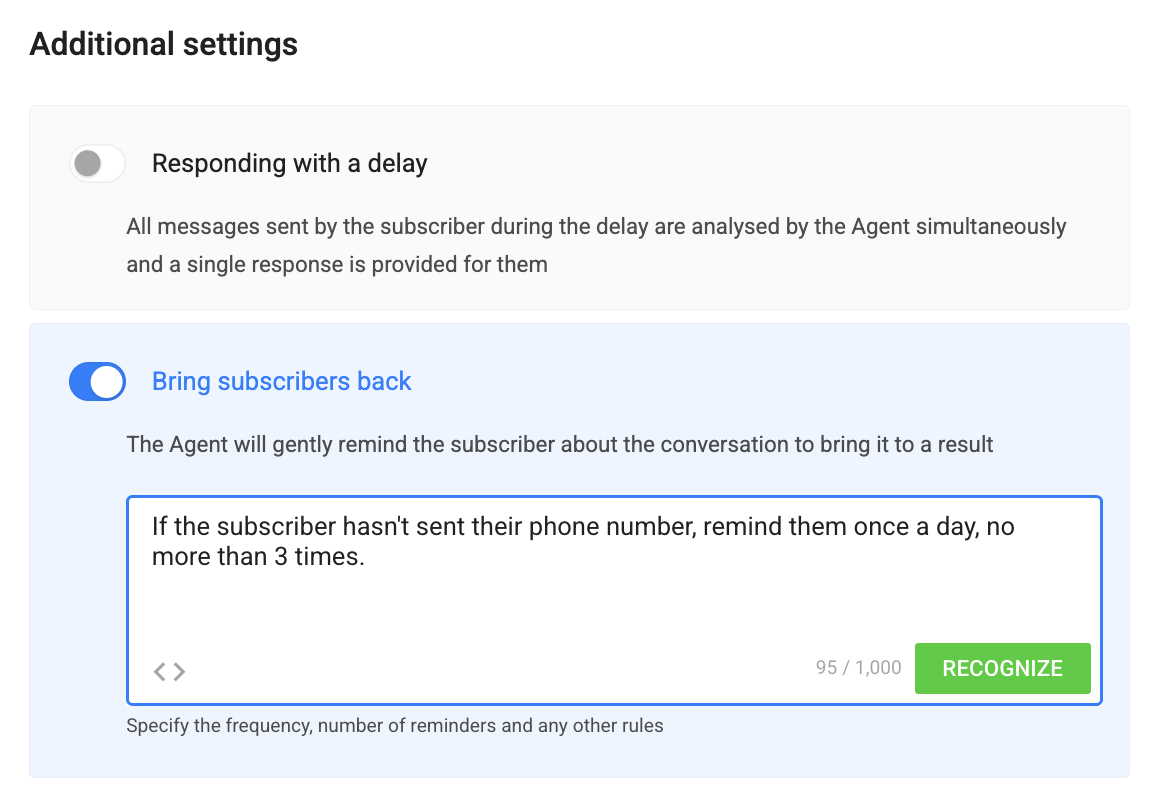
- In the field that appears, describe what to remind about, how many times and when. For example: “If the subscriber hasn’t sent their phone number, remind them once a day, no more than 3 times.”
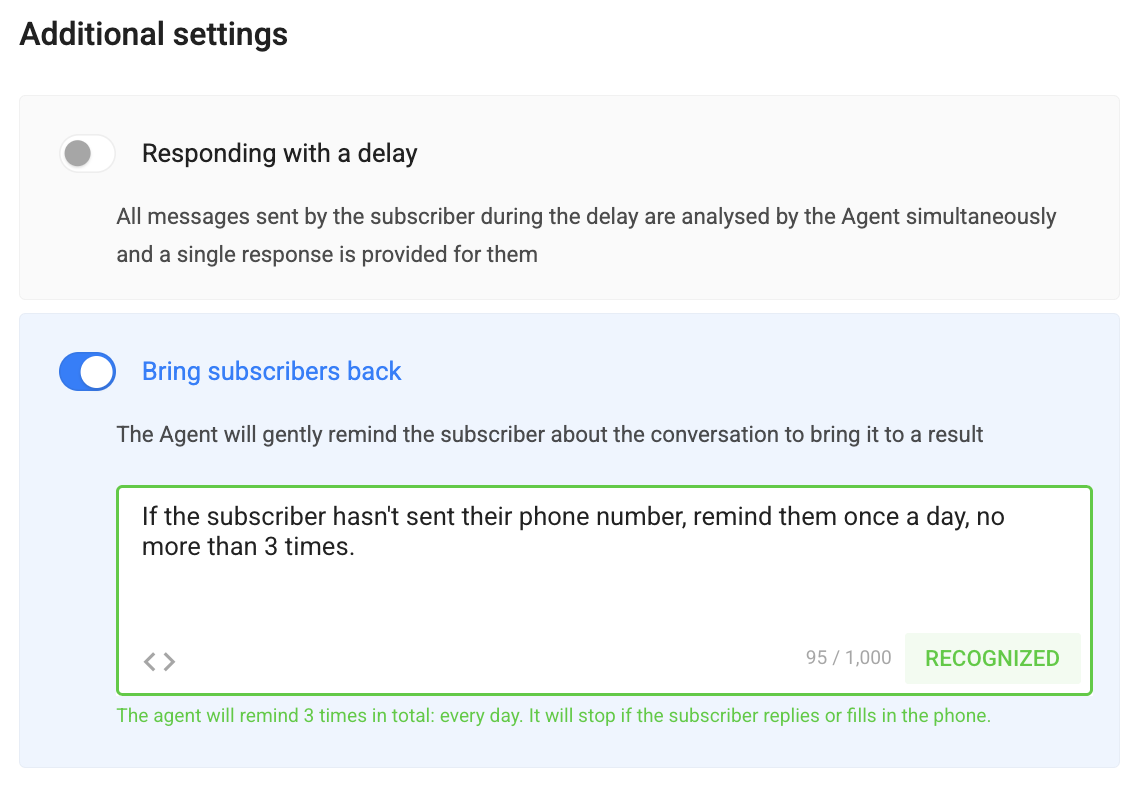
- Click Recognize. The agent will show how it understood the schedule, so check it. If the description can be read in different ways, the agent will ask a clarifying question: add details to the text and click Recognize again. If the schedule can’t be set or the description mentions a field or tag that doesn’t exist in your account, the agent will explain why, so correct the description.
- Save the agent.
How to write the description
Schedule
- The first reminder is counted from the agent’s last message in the dialog, and each next one from the previous reminder.
- Different pauses in a row: “Remind after 15 minutes, then after an hour, then after a day.”
- The same interval: “Remind every 2 hours, 4 times at most.”
- Time of day for daily reminders: “Every day at 9:00 PM, no more than 3 times.” “In the morning” means 10:00 AM, “in the afternoon” means 2:00 PM, “in the evening” means 6:00 PM.
- The shortest pause is 1 minute.
- Time is based on your account’s time zone.
How many times
- If no number is given, the agent will send no more than 3 reminders in a row.
- If a number is given, for example “no more than 5 times”, the agent will send that many reminders.
- If you write “until they reply” or “if they stay silent”, there’s no limit on the number of reminders.
When to stop
Reminders stop as soon as the subscriber replies to the agent. You can also set your own goals. The series will stop when any of them is met:
- a date has come: “Remind once a day until September 30, 2026”, or a date from a field: “Remind about the webinar once a day until {%deadline%}”;
- a field has been filled in: “Remind once a day until they send their email. 3 times at most”;
- the subscriber has got a tag: “Remind once a day until we add the Lead tag”;
- the agent has created a deal in amoCRM or Bitrix24, created an event in Google Calendar or launched a bot: “Remind them to choose a time after 2 hours, then after a day, until they book.”
You can set several goals in one description: “Every day, 3 times in total, until they send their email or get the Lead tag.”
Name fields and tags exactly as they’re named in your account. The agent doesn’t pick similar names or fix typos: if there’s no field or tag with that name, the schedule won’t be saved.
If a phrase can be read in different ways, the agent will ask you to clarify. For example: “remind in a day or two” — after 1 day or after 2 days; “at 9” — in the morning or in the evening; “until 03/09” — March 9 or September 3.
When a reminder isn’t sent
- The subscriber replied. The scheduled reminder is canceled. If the subscriber goes silent again, the countdown and limit start over.
- A multi-step bot or autoresponder message arrived. The reminder series is canceled. A one-time broadcast doesn’t cancel the series.
- A team member wrote to the subscriber — from the Dialogs section, from amoCRM or Bitrix24, directly in Instagram* Direct, from a Facebook* page or from a VK community. The series is canceled.
- Quiet hours. From 10:00 PM to 9:00 AM in your account’s time zone, reminders aren’t sent and are moved to 9:00 AM. The series isn’t canceled.
- The toggle is turned off or the agent is deleted. Scheduled reminders won’t be sent.
- You’ve run out of tokens. Reminders stop along with all agents in your account. After you top up, missed reminders aren’t sent. They’ll resume in the dialogs where the subscriber writes to the agent.
After a series is canceled, reminders in that dialog will resume only when the subscriber writes to the agent themselves.
Messenger specifics
- Telegram, VK, Viber and MAX: the reminder is sent no matter how much time has passed since the subscriber’s last message.
- Instagram and Facebook Messenger:** only within 24 hours of the subscriber’s last message. If the window has closed, the reminder isn’t sent but still counts toward the limit.
- If the subscriber has blocked the bot, the reminder won’t be delivered.
Where to see reminders
Sent reminders appear in the dialog feed in the Dialogs section, labeled with the agent’s name, and are stored in the message history.
Tokens
Tokens are spent on recognizing the description and on each reminder sent, the same way as on an agent’s reply. Usage is shown in the AI-agent statistics. Learn more in the article “Tokens”.
You can find the agent’s other features in the article “What is an AI-agent”.
*Owned by Meta, which is recognized as extremist and banned in the Russian Federation.
If you haven’t found the answer to your question, ask us in the chat inside your account, or message us on Telegram at BotHelpSupportBot or by email at hello@bothelp.io
Get 14 days of full access to the BotHelp platform for creating broadcasts, automated funnels and chatbots.
Sign up for BotHelp
Get 14 days of full access for free — enough to build your first bot and test it on real subscribers.
Create account
Была ли статья полезна?

