
The Google Calendar function allows you to create and send an event invitation to a subscriber in your Google Calendar and manage it. The function is triggered when a specified event occurs in the conversation with the subscriber:
- The subscriber confirmed their desire to sign up for an online consultation/trial lesson/in-person meeting.
- Or any other event.
How to enable the function
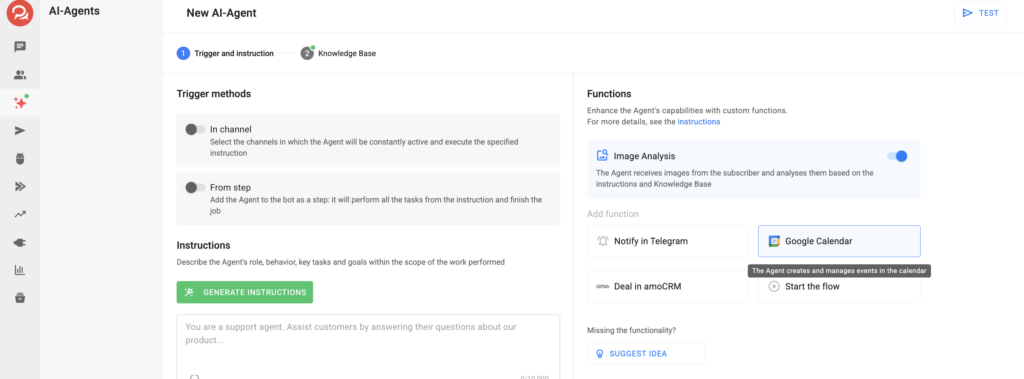
1. At the first step of AI-Agent setup, in the Functions section, select the Google Calendar card.
2. Connect the Google Calendar integration:
- Click the Connect Integration button.
- A Google sign-in window will open.
- Select the required Google account and click Next.
- Click Next to confirm acceptance of the privacy policy and integration terms.
- Click Allow to grant BotHelp the required permissions.
3. Configure the function parameters:
- At which event should the meeting be created in the calendar
— Describe the trigger: e.g., “subscriber confirmed their desire to sign up for an online consultation,” or other triggers relevant to your business logic. - In which calendar should the meeting be created
— Select a calendar from your Google account or a calendar shared by another Google account. - Working hours settings
— Choose the time zone in which the Agent will schedule events in the Calendar.
— Configure working hours; the Agent will offer the subscriber only the time slots you specify. - Meeting title
— Enter the title of the event; it will be visible in the calendar to all invited participants, including the subscriber. - Duration of the meeting
— Enter the duration of the event in minutes. - Regular participants (besides the subscriber)
— Enter the email addresses of participants on your side.
— Enable the Send notification to participants checkbox if you want notifications to be sent to all invited participants, including the subscriber. - Notification text for participants
— Enter a description, location, and other details that the subscriber needs to know. This information will be added to the Event Description in the Calendar.
Save the function. Congratulations! The function has been successfully configured. Don’t forget to test it before launching it for all subscribers.
Function Details
— During event creation, the Agent will request the subscriber’s email to create the event.
— To modify or cancel an event, the subscriber must request it in the chat (e.g., “cancel my appointment,” “I want to change the lesson time”). You can also manually cancel or modify the event via Google Calendar.
— The Agent can create an event in an available slot according to the working hours set in the function settings.
— If you want to pause the function, you can do so using the toggle on the card without deleting it.
— The function can be added multiple times to the Agent. This is useful when different events need to create meetings in different calendars (e.g., with different specialists).
If you did not find the answer to your question, feel free to contact us in the chat inside your dashboard, message us on Telegram at @BotHelpSupportBot, or email us at hello@bothelp.io.
Get 14 Days of Full Access to the Platform
Enjoy the full functionality of the BotHelp platform for creating broadcasts, automated funnels, and chatbots — free for 14 days.