
An AI-agent knowledge base is a structured set of information that a virtual assistant uses to answer your subscribers’ and customers’ questions about a product, service, or company.
A knowledge base is essential to ensure that the agent does not generate false information during conversations, but provides clear, verified, and up-to-date answers, acting like a responsible senior specialist of your support team.
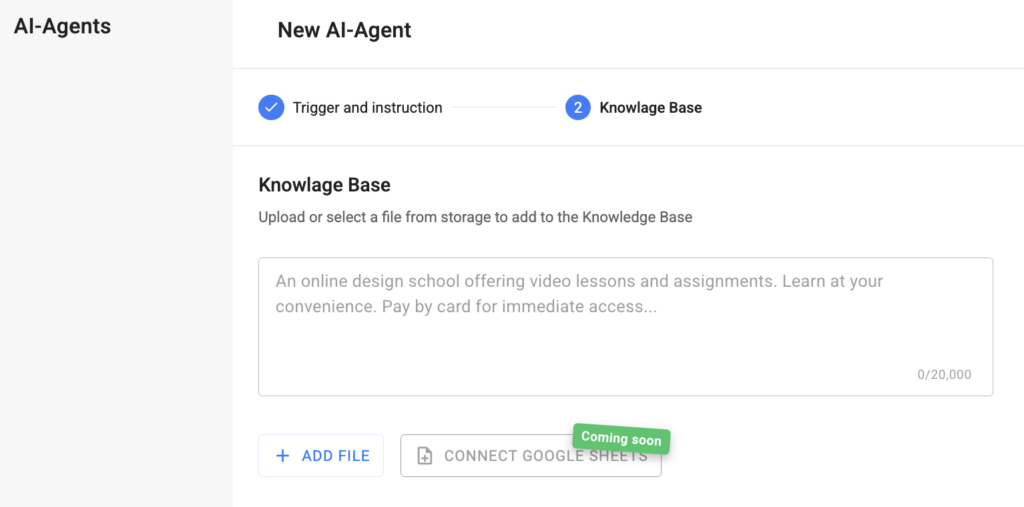
AI-Agent Knowledge Base Capabilities in BotHelp
In BotHelp, you can add a knowledge base for the AI-agent with unlimited size and support for multiple formats. The knowledge base is divided into two sections:
- Text Input — suitable for frequently asked questions or a small knowledge base.
- Add file — suitable for a large knowledge base. You can upload an unlimited number of documents and spreadsheets, from which the agent will select the most relevant answers.
The AI agent analyzes all uploaded information and uses it as the sole source of knowledge when interacting with users.
Depending on the task, either the first or second storage method—or both simultaneously—can be used. When searching for an answer, the agent first analyzes the data entered in the text field, and then the uploaded files.
Use Cases for the AI Agent Knowledge Base
🎓 Neuro-Curator for Online School Admissions
Based on uploaded instructions, event announcements, and price lists, the AI agent suggests suitable educational programs, explains the learning process, helps select events by date, topic, or availability, describes faculty features and opportunities, and discusses payment options and conditions.
🏘 AI Consultant for Real Estate and Investments
Using the knowledge base, the agent helps choose the direction and type of property, performs initial calculations of profitability, liquidity, and risks, and provides links to the company’s ecosystem and services.
🛒 Online Store Consultant
Based on uploaded product catalogs, the agent helps customers choose the optimal product according to their needs, budget, and preferences.
🧠 Psychological Assessment
Using methodological materials uploaded to the knowledge base, the AI agent conducts assessments across key life areas, analyzes the data, and generates a personalized report with recommendations.
🔮 Virtual Tarot Reader
Based on methodological materials in the knowledge base, the agent performs various card readings, explains card meanings, and provides guidance and recommendations.
How to Set Up a Knowledge Base
To add documents as a knowledge base for the AI-agent, follow these steps:
Upload documents to BotHelp:
- Go to the AI-Agents section.
- Select an existing agent or create a new one.
- Go to the Knowledge Base step.
- Click Add File.
- Choose a file from Storage or upload a new one.
Add Files to the AI-Agent
Select the documents and click Add. Once added, the files will be processed automatically.
Supported file formats: .pdf, .txt, .xlsx, .docx, .csv, or .md. Don’t see the format you need? Let us know here.
- Each file is processed only once — during the first upload to the agent’s knowledge base.
- Processing files consumes BotHelp tokens. The number of tokens depends on the file size.
- Small files are processed almost instantly. Processing large files may take several minutes.
- Images in files are ignored: they do not consume tokens and are not used as knowledge base material.
- All uploaded files count toward the total Storage of your workspace. To increase Storage and BotHelp token limits, you need to activate the Extension.
Save the Agent
Save your changes.
After saving and once file processing is complete, the AI agent will start using the information from the uploaded documents when interacting with subscribers.
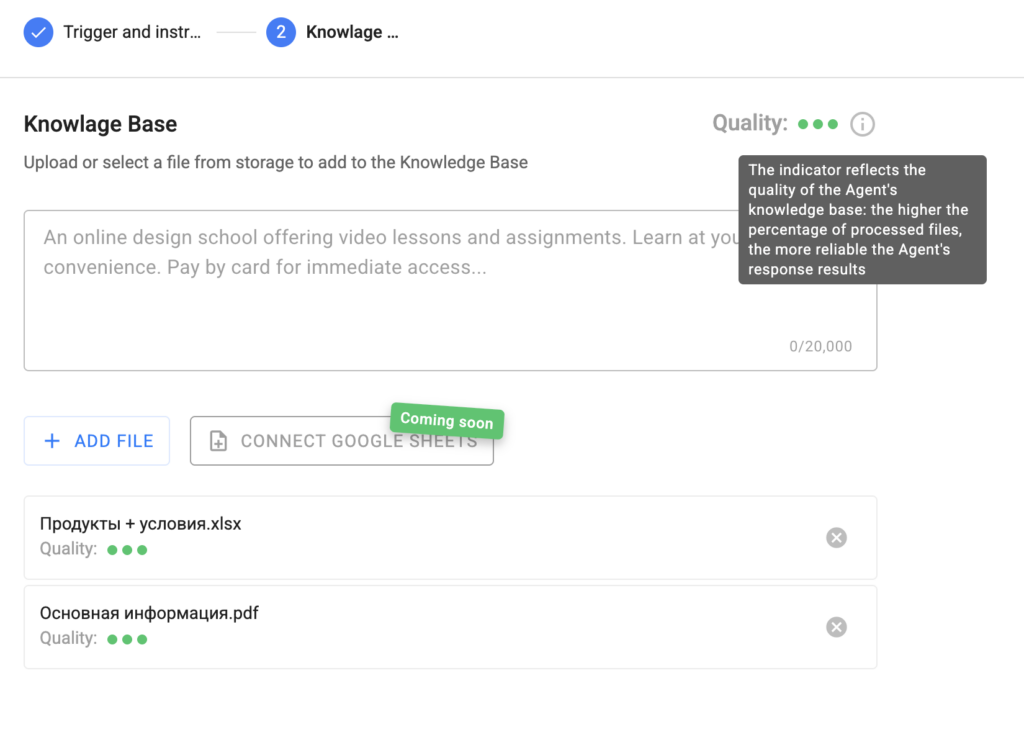
File Processing Quality Assessment
Pay attention to the quality indicator for each file:
- 3 green indicators — more than 85% of the file’s content is successfully used in the knowledge base.
- 2 yellow indicators — more than 60% of the content is used.
- 1 red indicator — low file processing quality.
If the processing quality is low, it is recommended to edit the document (simplify the structure, remove unnecessary elements) and upload it again.
Managing Files
You can manage uploaded documents (delete, download, or view) in Storage → Documents.
Token Usage
Token usage for each AI-agent is individual and depends entirely on the scenarios in which it operates. The exact token consumption can only be estimated by using the AI agent, depending on specific queries and interaction volume.
Tokens displayed in the workspace are BotHelp tokens and do not correspond to the tokens used by neural networks.
Actions and features of the AI agent that consume tokens:
- Generating instructions for the AI agent
- Testing the AI agent
- Processing documents
- The “Data Collection” feature
- AI agent interactions with subscribers
Two key factors affecting token usage:
- Model and “Data Collection” feature
- In standard mode, the AI agent uses GPT-4o-mini, optimized for everyday tasks and fast interactions.
- For tasks where completeness and reliability are crucial—such as structured data collection from multiple sources—the “Data Collection” mode is used. In this mode, GPT-4.1 is applied, offering higher stability and better handling of analytical and research queries.
Important notes when creating an AI agent:
- An agent created from scratch without “Data Collection” works in standard mode on GPT-4o-mini by default.
- An agent created by copying a template inherits all its settings. If “Data Collection” was enabled in the template, it will remain active in the copy without additional setup.
- Size of instructions and knowledge base
- The longer the agent’s instructions and the larger the knowledge base, the more context the model must process for each response. This directly increases token consumption.
- To optimize token usage, create concise instructions and upload only necessary documents to the knowledge base.
Where to see remaining tokens
The remaining tokens can be viewed in Billing if the Extension is enabled. Without the extension, this information is not available.
More details on enabling the extension are available in the relevant article.
If you didn’t find the answer to your question, ask us in the chat inside your workspace, or contact us via Telegram: BotHelpSupportBot, or by email: hello@bothelp.io.
Get 14 days of full access to the BotHelp platform for creating broadcasts, automation funnels, and chatbots.