
Our Facebook* integration allows you to connect the company’s page to your BotHelp account.
When a client sends a message to the page, you receive it in your BotHelp account under the Conversations section and can reply to it. The client will receive this response in Facebook Messenger*.
Facebook* Settings
Go to your Facebook* account. Make sure that messages are enabled on the page. You can do this via Settings in the top-right corner: Settings & Privacy → Settings → in the left menu find How people find and contact you → Messaging, and make sure the checkbox is enabled.
Add a channel in BotHelp
To grant the BotHelp application access to a business page, you have to be the page administrator.
- Go to the BotHelp account settings and select the Conversations section.

- Click the Add New Channel button.
- In the window that opens, select Facebook* Messenger.
- Click Connect Facebook.
- Confirm authorization.
- Provide access to all the pages that you use to create sequences in BotHelp, including those in other BotHelp profiles.
- Confirm all access rights and click Save.
- If you see a message that the account is linked to the BotHelp app, it means that the account has been linked successfully. Click Got it.
- Select the page that you plan to connect to your account from the drop-down list.
- Click Add Channel.
If the page is not in the list, go back to the authorization step and click the Edit previous settings button.
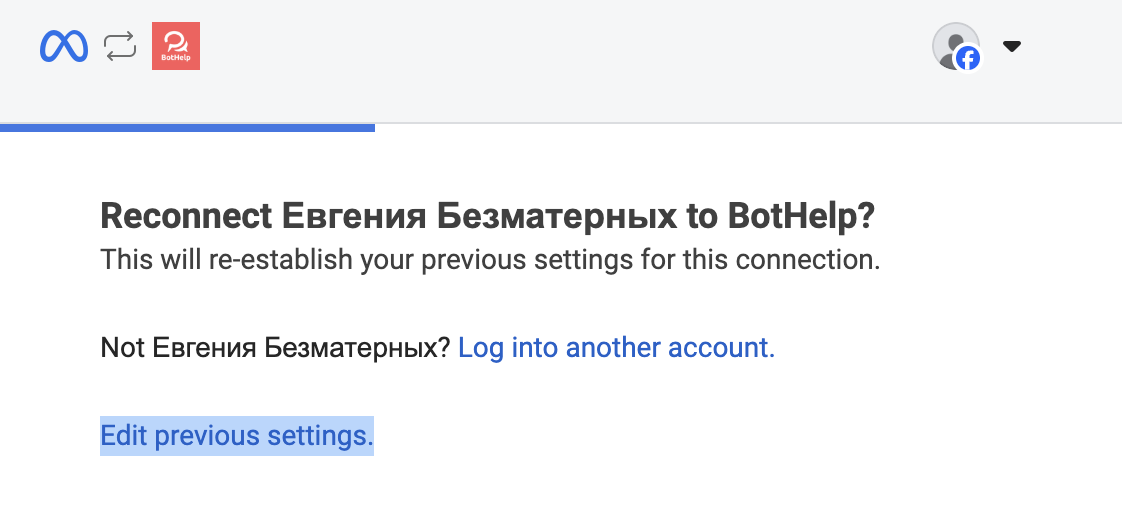
After that, the new channel will be displayed in the list, and you can select it when setting up funnels.
Always be the admin of the community
If the user who connected the Facebook* page ceases to be its administrator, then everything related to this page will stop working. All Facebook API requests will be rejected by Facebook itself, so flows will stop working for it.
(!) After making any changes to the settings, the channel has to be reconnected in the platform profile.
App Setup
Check the setup in Facebook*. This setting is now located under Settings & Privacy → Settings → Page Setup → Advanced Messaging → Connected Apps. Make sure the BotHelp app appears there and grant access to manage messages.
If you have previously used other apps, go to Settings & Privacy → Page Setup → Advanced Messaging and remove them. Failing to do so may cause conflicts that negatively affect the bot’s performance.
FAQ
The page isn’t connecting.
Make sure that the page is published and accessible to all users.
How can users start a conversation with a flow on Facebook*?
The ways of launching the chain are described in these materials:
Check out our article on the subject: Advertising for the purpose of “Message”.
* Owned by Meta, an organization recognized as extremist and banned in Russia.
If you haven’t found the answer to your question, contact us in the chat in your profile or email hello@bothelp.io😃
Get 14 days of full functionality of BotHelp, a platform for creating broadcasting, autofunnels, and chatbots.
Sign up for BotHelp
Get 14 days of full access for free — enough to build your first bot and test it on real subscribers.
Create account

Была ли статья полезна?