
Bro is an AI assistant in your BotHelp account. Describe your task in your own words, and Bro will do it for you: connect a channel, build a flow, prepare a broadcast or show statistics. If you need help from a specialist, you can contact BotHelp support through Bro.
For example, write: “Connect my Telegram channel and make a flow that gives out a guide for subscribing.” Bro will ask for details, connect the channel and open the finished flow in the Flow Builder.
How to start a dialog with Bro
Click the Bro icon in the account header. Bro will open in a side panel, and you can work with it from any section. Type your task or dictate it by clicking the microphone in the input field. You can also choose one of the actions Bro suggests.

To help Bro understand your task the first time, specify:
- what to do;
- for which channel;
- what the end result should be.
Write the way you’d explain it to a colleague. You don’t need to know the names of sections and settings. If there isn’t enough information, Bro will ask a clarifying question.
What Bro can do
Bro takes into account what’s already in your account: channels, flows, broadcasts and launch methods. For example, if you ask it to build a flow and don’t name a channel, Bro will offer to choose one of the connected channels or connect a new one.
Below is what Bro can do right now. New skills are added all the time.
Channels and initial setup
- Helps with initial setup: based on a description of your business, it suggests a plan — which channel to connect, how subscribers will get into the flow and which template to use. You can remove or replace items in the plan.
- Connects channels: Telegram, VK, Instagram*, Facebook* Messenger and MAX.
For example: “I have an online school and a VK community, and I want to collect sign-ups for a trial lesson.”
Flows
- Builds a flow from a description and opens it in the Flow Builder. You can describe the whole scenario at once or dictate it step by step.
- Creates a flow from a template or an empty flow.
- Edits any flow in your account, not only the ones it built.
- Builds one flow for several messengers at once: Telegram, VK and MAX.
- Moves a flow to another messenger.
- Creates deeplinks to a flow or a flow step in Telegram.
- Turns on a flow and suggests launch methods for the selected channel.
For example: “Make a 3-day warm-up flow before the webinar with a button to the live stream” or “Add a button with a link to our channel to the ‘Lead magnet’ flow.”
Broadcasts
- Prepares a one-time broadcast in Telegram, VK, Facebook* Messenger or MAX: writes the text based on your idea or uses a ready-made one. You can send it to all subscribers or only to those with specific tags and fields.
- Sends the broadcast right away or at a chosen time. Before launching, it offers to send a test to you.
- Repeats a past broadcast: takes the text, attachments and buttons from the history. You can edit them before sending.
For example: “Remind subscribers with the ‘webinar’ tag that the live stream is tomorrow at 7:00 PM” or “Send the same broadcast as last Tuesday, just with a different date.”
AI-agents
- Builds an AI-agent from a task description: writes the instructions, picks functions and adds your website or a document by link to the Knowledge Base. Bro saves the agent in your account and opens its card. If the result doesn’t suit you, ask Bro to change it or build the agent again.
- Creates an agent from a template and edits existing agents.
- Helps add an AI-agent to your website: creates the agent, connects it to a widget and sends you the code to paste on your site.
You can also build an agent with the Generate button in the AI agent card.
For example: “I need an agent that answers questions about prices and collects leads.”
Launch methods and growth tools
Bro sets up:
- a keyword — the flow launches when a subscriber writes a specific word or phrase;
- a welcome message on subscription;
- a reaction to a comment and a reply in comments under Instagram* posts and Reels;
- flow launch on a reaction to an Instagram* Story;
- a reaction to a VK comment;
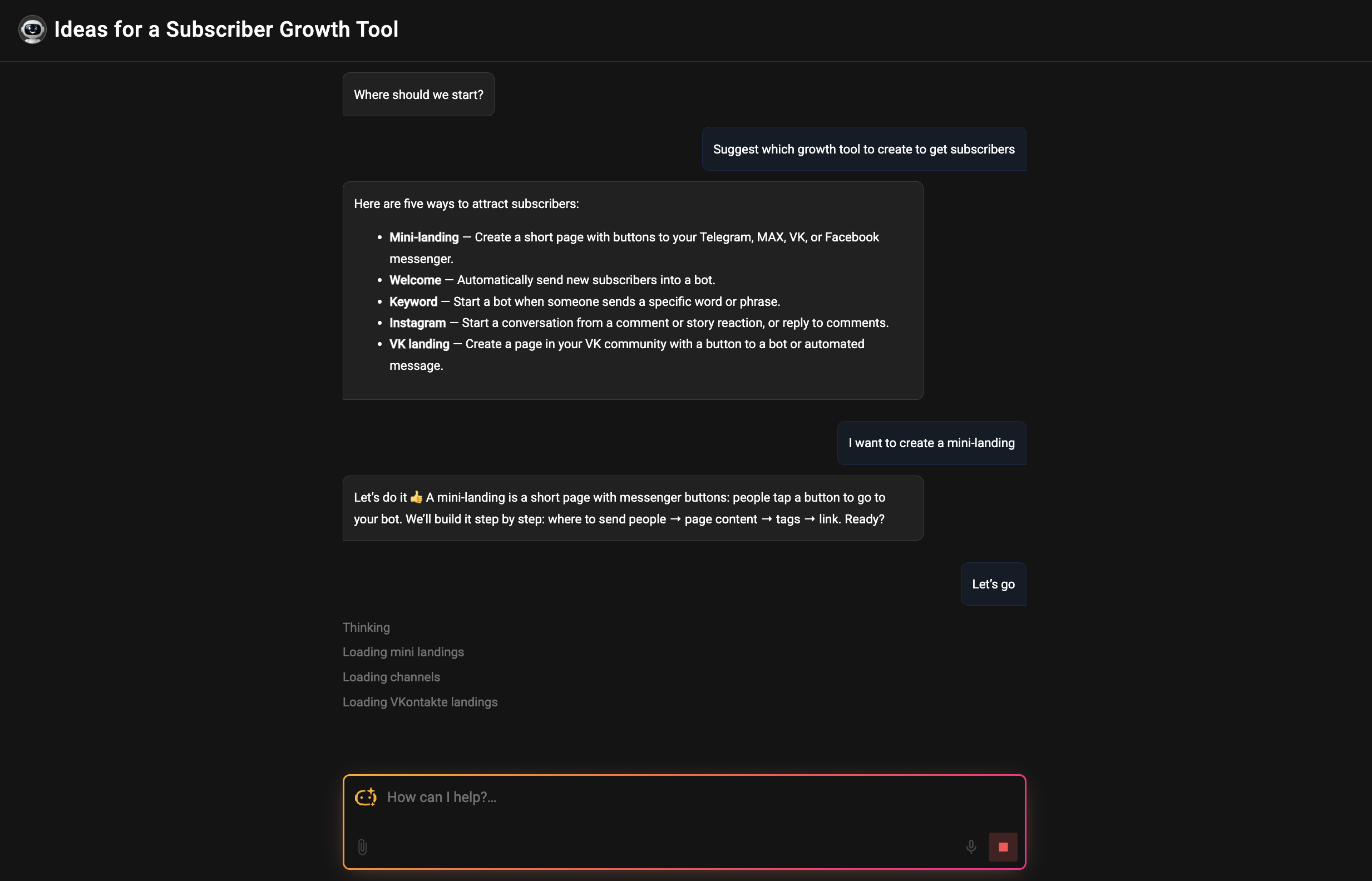
- a mini landing page — a page with messenger buttons: Bro will build it and send you the link;
- a VK landing page — Bro will send you two links for ads: with auto-subscribe and without it.
For example: “I want the flow to launch when someone writes the word ‘guide’ under a Reel.”
Subscribers
- Imports a Telegram, VK or MAX subscriber base from a file: checks that the file is formatted correctly and offers to tag new subscribers so you can send them a separate broadcast later.
- Imports from VK the people who have already messaged your community.
For example: “I want to move my subscriber base from Salebot.”
Statistics
- Shows statistics for one-time broadcasts: delivered, opened, clicks, including by channel.
- Shows flow statistics by step.
- Calculates how many subscribers joined and unsubscribed over a period, how they’re distributed across channels, how active they are and how long they stay with you.
For example: “How many subscribers joined in October and where from?” or “At which step of the ‘Lead magnet’ flow do subscribers drop off most often?”
Questions about BotHelp
- Answers questions about the platform based on Knowledge Base articles.
- Helps you pay for your account.
For example: “How do I add a team member to my account?” or “What’s the difference between a broadcast and an autoresponder?”
Contacting support through Bro
Bro is also a way to contact BotHelp support. Your question goes to support right from your dialog with Bro, so you don’t need a separate chat.
A question goes to support in two cases:
- you ask for support — for example, you write “Call an operator” or “I want to talk to a human”;
- Bro forwards the question itself — when it’s about payment, your plan, account access or security, when something in your account isn’t working as expected, or when Bro can’t answer on its own.
First, the support AI answers your question. If needed, a team member joins the dialog, and you’ll see their name in the chat. The reply will come to the same chat, and you can keep working in your account while you wait.
In a support conversation, you can attach screenshots, documents and videos: up to 50 MB per file and no more than 10 files at a time.
When support ends the dialog, you’ll continue working with Bro from where you left off. Your conversation with support is visible only to you. Your colleagues in the account can’t see it.
Specifics and limitations
Action confirmation
Before important actions, Bro asks for your confirmation:
- broadcast — Bro shows a summary: channels, recipients, message and sending time. The broadcast won’t go out without your confirmation;
- subscriber import — starts after you click All correct;
- new fields and tags — Bro offers to create them first.
Bro makes changes to a flow right away, and you can see them in the Flow Builder. To undo a change, write “Undo that.”
Only team members with the Administrator and Editor roles can create and change flows, broadcasts and other tools through Bro. Learn more about roles in the article “How to add a team member”.
What Bro can’t do yet
- Delete flows or move them to another account.
- Create triggers.
- Connect integrations — amoCRM, Bitrix24, GetCourse and others are set up manually.
- Set up autoresponders and payment acceptance.
- Change scheduled broadcasts.
- Search for subscribers or perform bulk actions on them: it doesn’t add tags, save segments or export the base.
- Show statistics for autoresponders, landing pages, AI agents and UTM tags.
- Analyze images and screenshots. Describe the situation in text or send the screenshot to support.
If a growth tool isn’t on the list above, for example a widget or a post with a button in Telegram, Bro will open its section in your account, and you’ll finish the setup yourself.
Bro’s memory
Bro’s memory is information about your business that Bro relies on when writing texts for flows, broadcasts and landing pages. Thanks to memory, texts are written in your style and about your products, not in general terms.
There’s one memory per account, and it consists of four blocks:
- Who we are — niche, company name, website, experts’ names;
- What we sell — products, offers and prices;
- How we write — tone and examples of your texts;
- Who we sell to — audience and regular events: webinars, launches, sales.
Where Bro gets information
From your account. Bro analyzes broadcasts, payment pages, flows, mini landing pages, channel names, AI agents and their Knowledge Bases over the selected period — everything it has access to.
From your materials. While Bro is building its memory, you can send it PDF, TXT, XLSX, DOCX, CSV and MD files up to 10 MB, a website link, and publicly accessible Google and Yandex Docs and Sheets. Bro can’t read pages protected by a password or CAPTCHA.
Bro will add the niche you named during onboarding to the Who we are block on its own.
How to build memory
Start building memory with the Collect account context card on Bro’s start screen or in the Bro’s memory window. Bro will also offer to build its memory when you ask it to write a text.
- Click Analyze account.
- Select a period. The default is 3 months.
- Wait for Bro to send a summary — what it analyzed and over what period — and the memory card.
You can stop the analysis with the Stop button, in which case the memory won’t be saved. If there’s nothing to analyze for the selected period, Bro will offer to choose a longer period or upload materials about your business.
How to view and change memory
To view the memory, open Bro’s memory [TBC: path — icon in the Bro panel or Settings → “Memory”].
- Change — tell Bro what to fix. For example: “Add to memory that we hold a webinar every Thursday.” Blocks can’t be edited manually.
- Clear — the Clear button erases the open block.
- Update — memory doesn’t update on its own. For Bro to take new broadcasts and flows into account, ask it to update its memory. [TBC: is there an “Update” button]
Team members with the Administrator and Editor roles can see and change the memory. If you work in several accounts, each has its own memory.
FAQ
Does Bro use tokens? Building an AI agent through Bro and processing Knowledge Base sources use your account’s token limit. Learn more in the article “Tokens“. If you run out, Bro will offer to increase the limit. [TBC: other skills]
Can I undo what Bro did? A change in a flow — yes: write “Undo that.” Bro launches broadcasts and imports only after your confirmation, and you can stop a scheduled broadcast in the Broadcasts section. Anything else can be changed manually in the relevant section of your account.
What if Bro did the wrong thing? Click Stop, clarify the task in one message and check the result: a flow opens in the Flow Builder, an AI agent in its card. If it still doesn’t work, write “Call an operator.”
*Facebook and Instagram are owned by Meta, which is recognized as an extremist organization and banned in the Russian Federation.
If you haven’t found the answer to your question, ask us in the chat inside your account, or message us on Telegram at BotHelpSupportBot or by email at hello@bothelp.io
Get 14 days of full access to the BotHelp platform for creating broadcasts, automated funnels and chatbots.
Sign up for BotHelp
Get 14 days of full access for free — enough to build your first bot and test it on real subscribers.
Create account
Была ли статья полезна?

